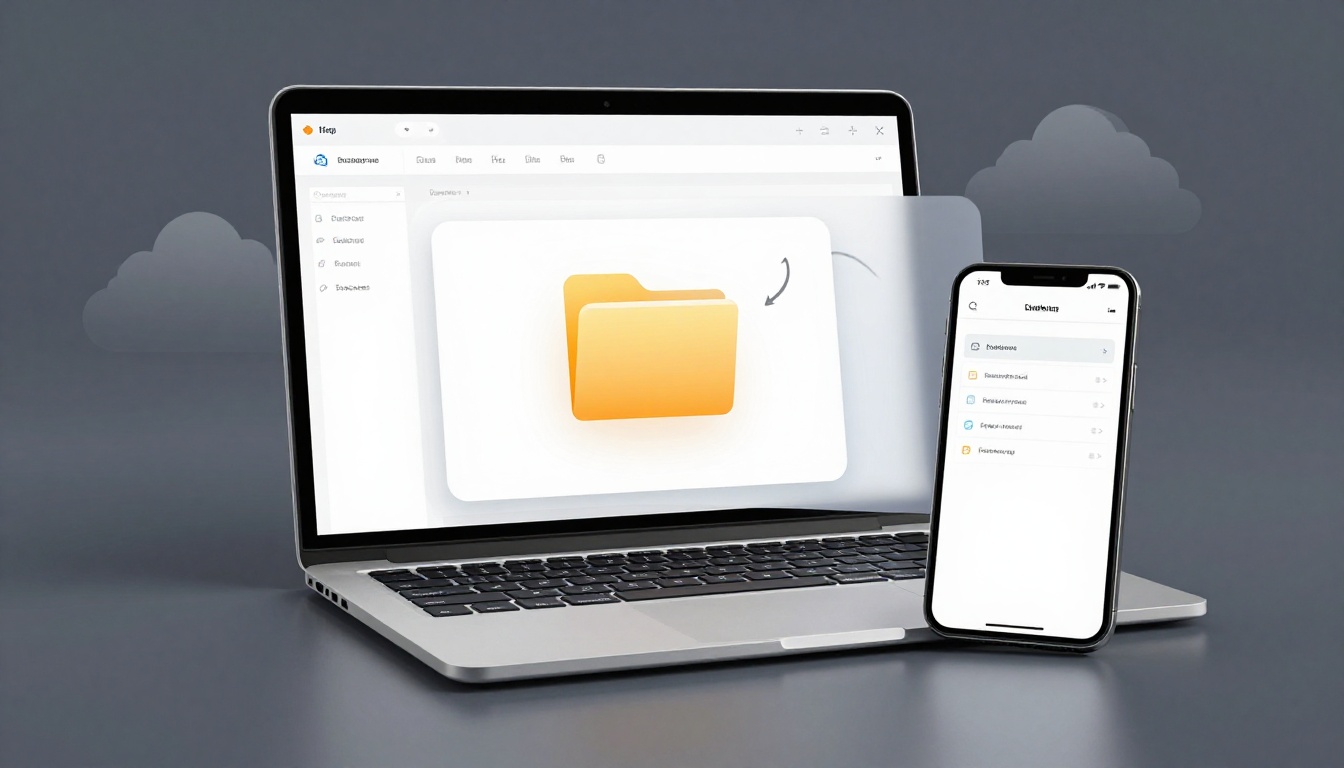
You’ve got a folder full of vacation photos. You try to email it, but the size blocks you. Attachments max out fast. That’s where ZIP files save the day. They shrink your files so you send them quicker and store them smarter.
ZIP files bundle items into one package. They cut size by removing extra space between files. You get faster downloads, easier backups, and secure shares. No more “file too large” errors. Plus, they protect data during travel.
This guide shows you how. Start with built-in tools on your device. Then move to free software for better results. Try online options for quick jobs. Finish with tips and fixes. You’ll compress and extract ZIP files easily, even without tech skills. Anyone can master this in minutes.
Use Your Device’s Built-in Tools for Instant ZIP Action
Most devices handle ZIP files right out of the box. No extra downloads needed. These methods work for quick tasks. Beginners love the simplicity. You right-click or tap, and done.
They create standard ZIP formats. That means good sharing across platforms. However, they skip advanced features like strong passwords. For basics, they shine.
On Windows: Right-Click to Zip Folders in Seconds
Windows makes zipping simple. Select files or a folder. Right-click it. Pick “Send to” then “Compressed (zipped) folder.” Windows builds your ZIP fast.
Name the new file. It appears right there. To extract, double-click the ZIP. Drag files out to a folder. Or right-click and choose “Extract All.”
This handles everyday needs well. It works on Windows 11 without changes in 2026.
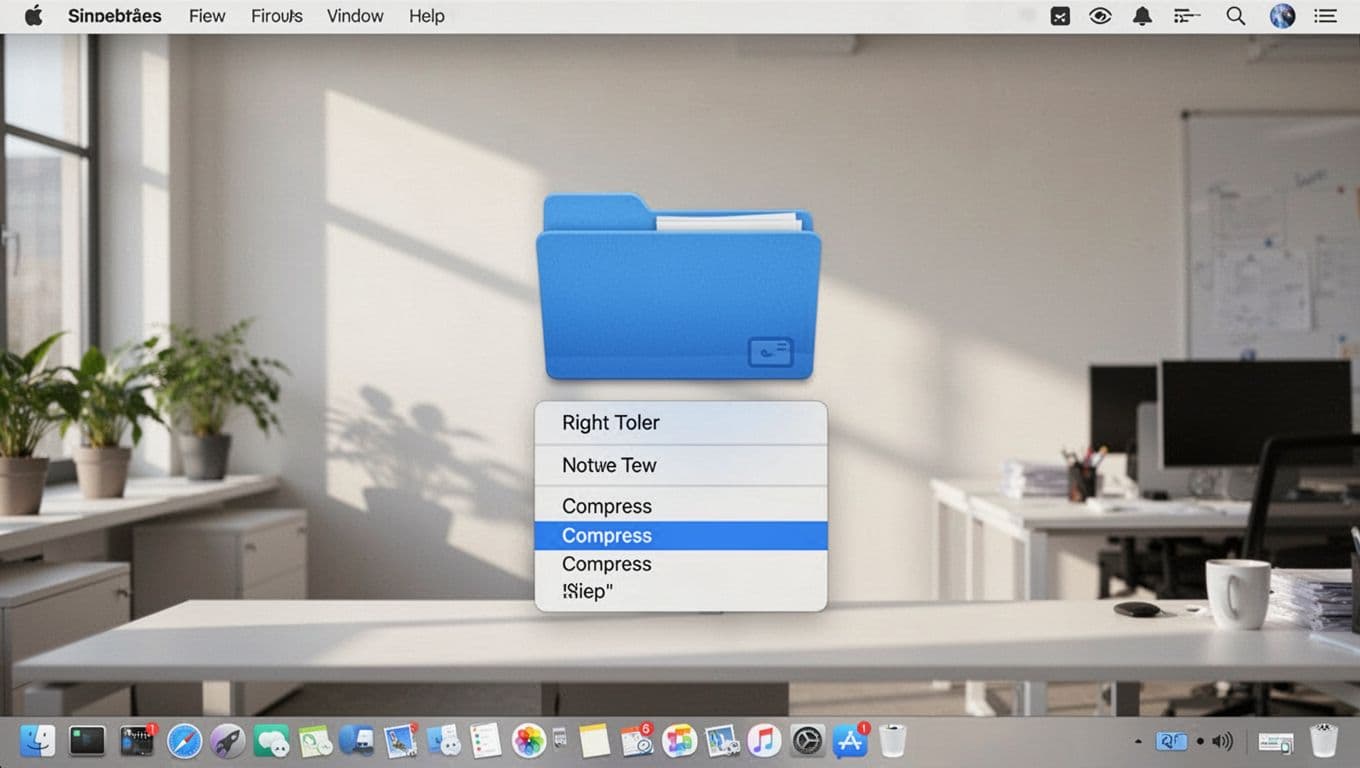
On Mac: Compress with One Right-Click
Mac users get seamless tools. Highlight files in Finder. Right-click. Select “Compress [number] Items.” A ZIP forms in seconds.
Double-click any ZIP to extract. Contents spill into a new folder. Preview first by double-clicking without dragging. Mac integrates this smoothly.
It fits Apple’s design. No fuss for photos or docs.
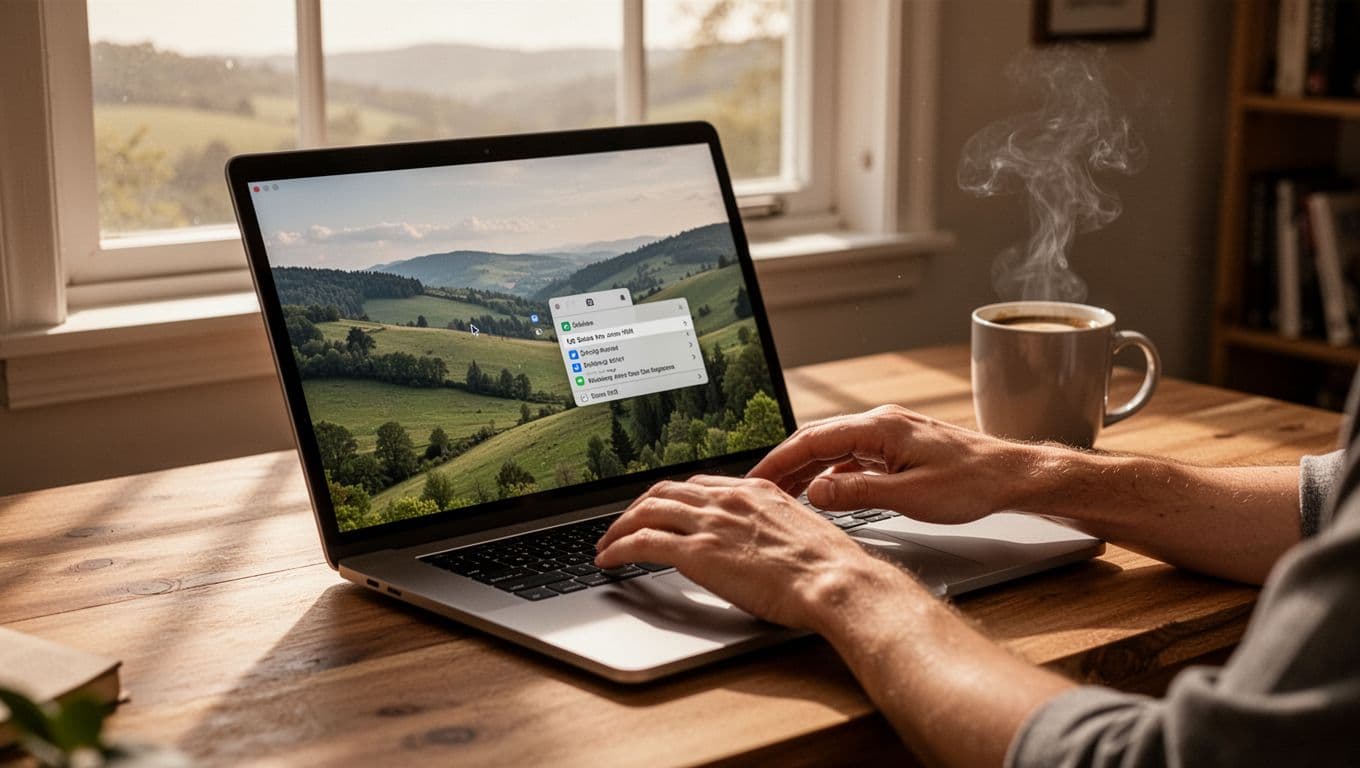
On Linux: Quick Terminal Commands for Power Users
Linux offers free zip tools. Most distros have them. If not, run sudo apt install zip unzip first.
Compress with zip archive.zip folder/. It packs everything inside. Extract by typing unzip archive.zip. Files unpack neatly.
Examples help new users. For photos: zip photos.zip *.jpg. Fast and lightweight. Stays true to Linux speed.
On Android and iOS: Tap to Compress in Your Files App
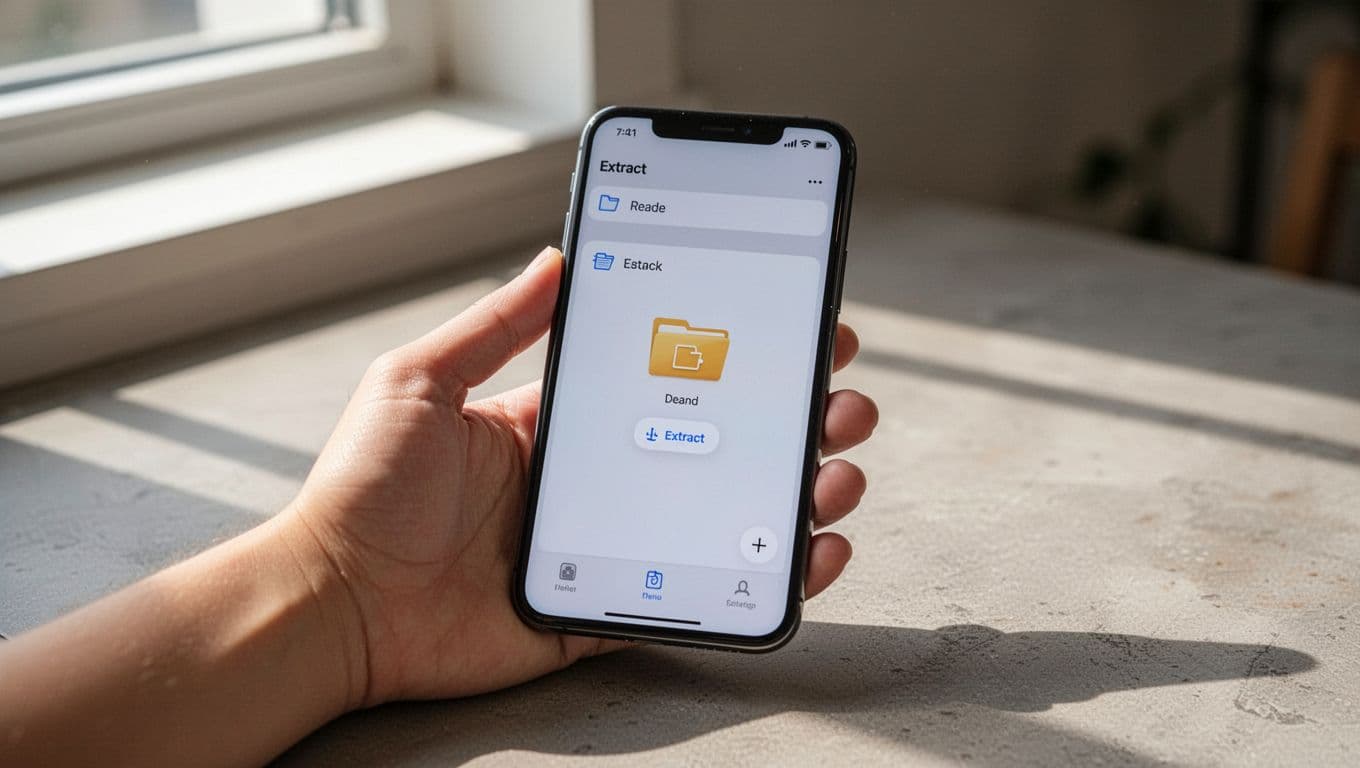
Mobile works too. On Android, open Files app. Select items. Tap “Compress” for a ZIP.
Tap the ZIP to extract. iOS Files app needs a long-press. Choose “Compress.” Unzip by tapping.
Limits exist. No passwords here. Use desktop for secure stuff. Great for on-the-go shares.
Level Up with Free Software That Compresses Smarter and Safer
Built-ins work fine. But free tools beat them. They squeeze files tighter. Think 2-10% smaller archives. They add encryption too. Supports more formats like 7z or RAR.
Cross-platform picks top 2026 lists. They outpace paid apps like WinRAR on speed and security. Download from official sites only.
7-Zip: The Go-To for Windows and Linux with Top Compression
7-Zip leads free options. Open-source and forever free. It handles 100+ formats. AES-256 locks files safe.
Install from the official 7-Zip download page. Right-click files. Choose “7-Zip” then “Add to archive.” Pick ZIP or 7z. Add a password.
Extract the same way. Lightweight design flies on big files. Perfect for Windows or Linux.
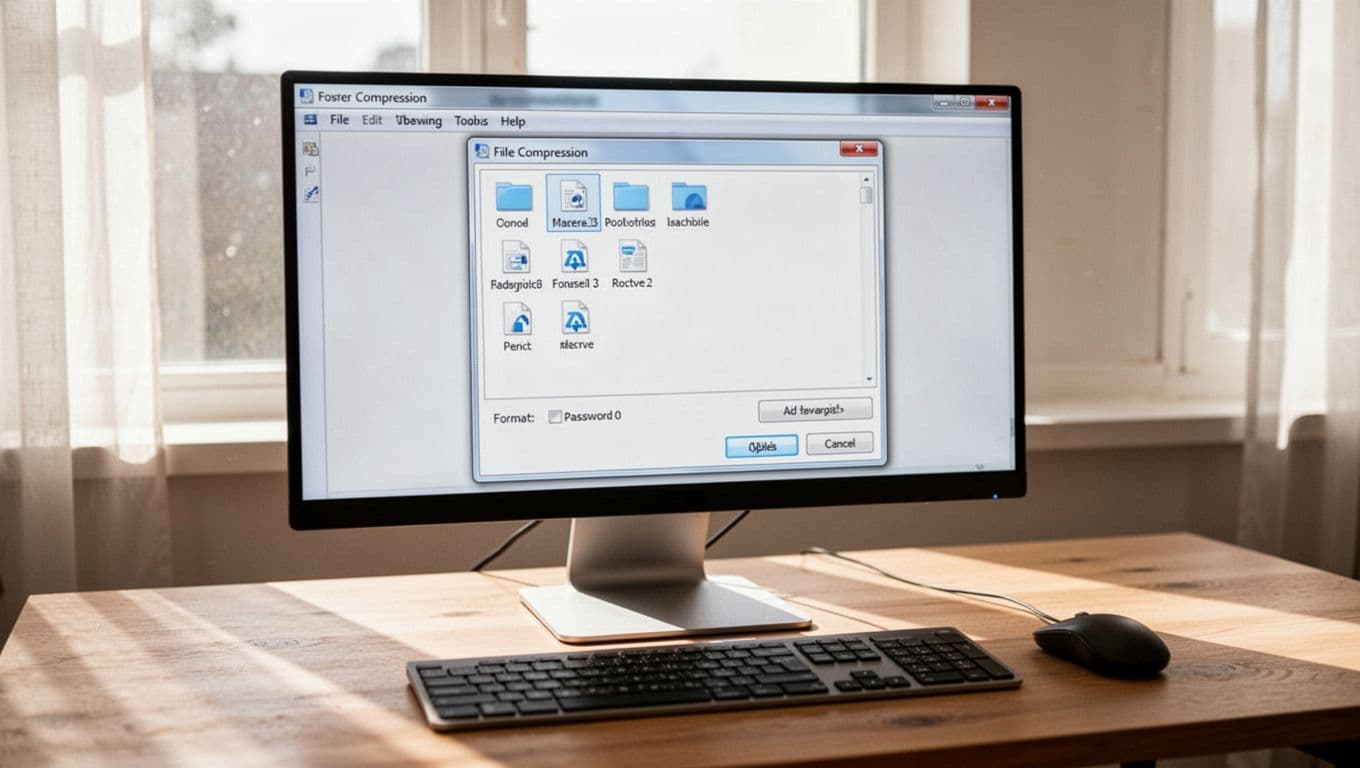
PeaZip: Works Everywhere with Extra Security Features
PeaZip runs on Windows, Mac, Linux. Free and open-source. Manages 100+ formats. Adds two-factor auth.
Grab it from peazip.com. Add files. Select ZIP or 7z. Encrypt with password. Converts archives easily.
Modern look helps. Secure delete protects privacy.
Bandizip and Other Quick Picks for Speed Demons
Bandizip speeds through huge files. Multi-core power helps. Free version does ZIP and 7z. Download from Bandisoft.
Mac picks The Unarchiver for extracts. No ads in these. Batch jobs run smooth.
Zip Online for One-Off Tasks – No Install Required
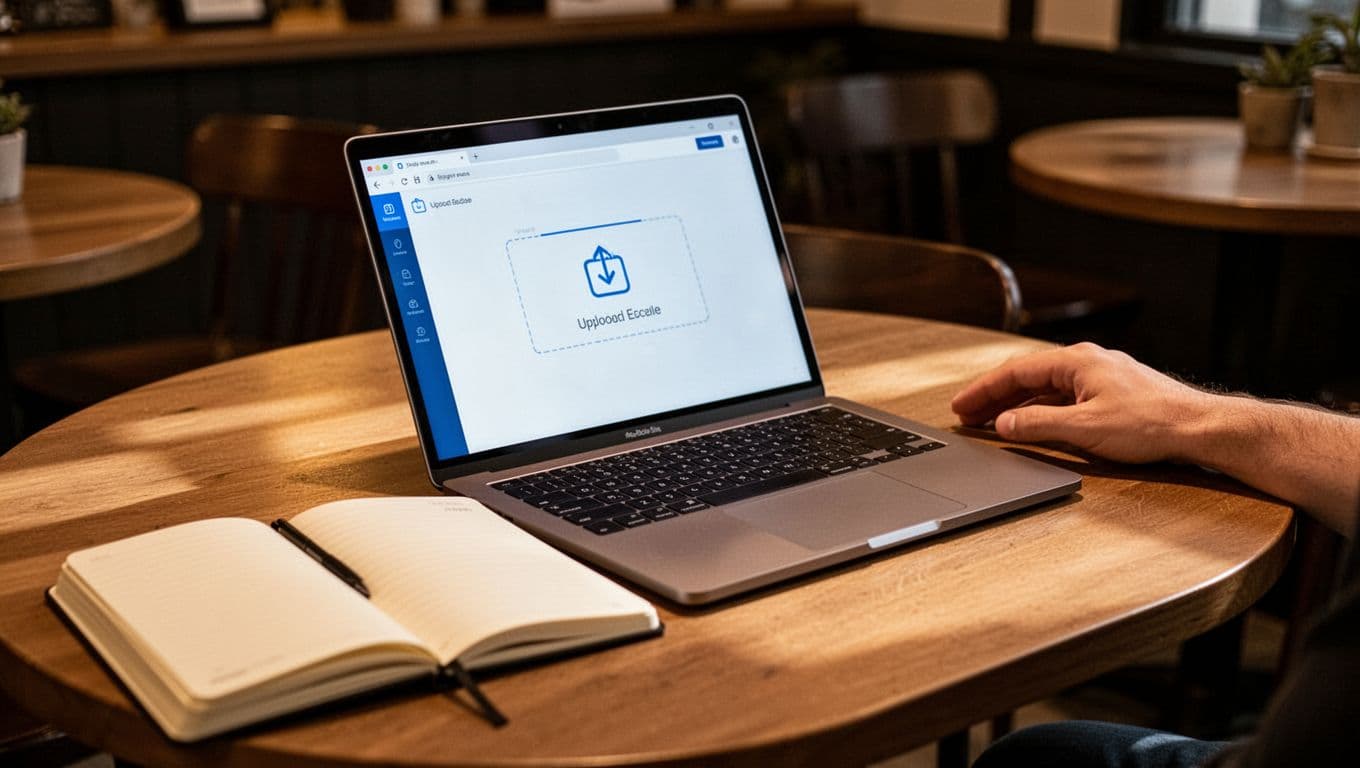
Need a fast fix? Online tools fit. No software needed. ezyZip tops safe lists. It compresses and extracts ZIP, 7z, RAR.
Upload files. Choose action. Add password if wanted. Download the result. Browser-based ease.
Privacy matters. Skip sensitive data. Servers see uploads.
Best for one-offs. Not daily work. Test small files first.
Pro Tips and Fixes to Make ZIP Files Hassle-Free
Master ZIP with habits. Save space. Stay secure. Fix issues quick.
Best Practices That Save Space and Keep Files Secure
Choose wisely. ZIP for wide use. 7z shrinks more. Always add AES-256 passwords.
Split big archives. Test extracts right away. Batch files together. Scan for viruses first. Update tools often.
Local saves beat cloud glitches.
Solve Common ZIP Problems in Under a Minute
Corrupted file? Redownload. Or repair in 7-Zip or PeaZip.
Forgot password? Use a manager next time. Slow speeds? Close apps. Pick Bandizip.
Can’t extract? Restart explorer. Permissions low? Check properties.
Virus worry? Scan before open. These fix most snags.
Built-in tools start you simple. Free software like 7-Zip adds power. Online fits quick needs. Tips keep you smooth.
Try 7-Zip today. It transforms file handling. Share your ZIP wins in comments. Subscribe for more tips. ZIP skills make sharing effortless.