
Picture this: Sarah, a recent college grad, lands her first office job. She needs to draft a simple resume and report, but Microsoft Word stares back like an alien spaceship. Buttons everywhere, menus that hide features, and panic sets in because deadlines loom.
Don’t worry if that’s you. This step-by-step guide walks total beginners through Microsoft Word using the current version 2510 for Microsoft 365 desktop. You’ll create professional documents fast, format text with ease, and tap into new AI tools like Copilot that suggest edits and generate content on the fly.
First off, Word makes polished reports, letters, or flyers simple. No more guesswork; follow along and build skills quickly. Plus, Copilot helps brainstorm ideas or rewrite sections, so even newbies produce work that impresses bosses. In addition, you’ll save hours wrestling with basics because everything flows intuitively once you know the ropes.
Meanwhile, think about the confidence boost. You’ll handle bold headers, bullet lists, images, and tables without frustration. Saving files securely or sharing via cloud becomes second nature too. As a result, your documents look pro right away.
In this post, we cover setup and installation first. Next comes the interface tour so nothing feels overwhelming. Then, creating your first document, mastering formatting tricks, inserting elements like pictures or charts, smart saving options, and bonus tips for efficiency. Ready to turn Word into your ally? Let’s dive right in.
Set Up Microsoft Word and Check for the Latest Version
You need Word ready before you create your first document. Start by installing it if you don’t have it, then check for updates. New versions bring fixes, speed boosts, and tools like better Copilot integration. For example, the latest on Windows is Version 2603 (Build 19822.20114), released March 24, 2026. On Mac, it’s 16.107 (build 26030819) from early March. Updates keep your work secure and smooth, so don’t skip this step.

Quick Ways to Install Word on Windows or Mac
Most people get Word through a Microsoft 365 subscription. It costs about $7 a month for personal use, or try the free one-month trial. First, sign in at account.microsoft.com. Then grab Microsoft 365 and download the installer. Run it, follow the prompts, and sign in again to activate. The process takes five minutes on most computers.
Here are the exact steps:
- Go to Microsoft’s download page for Microsoft 365.
- Click Install apps after you sign in with your Microsoft account.
- The installer downloads. Open the file and pick Install.
- Wait for it to finish. Word appears in your apps.
No subscription? Use the free web version at office.com. Sign in, pick Word, and edit docs in your browser. However, desktop Word offers more power like offline work and advanced formatting. Beginners might start online to test basics, then upgrade for full features.
| Feature | Desktop Word | Web Version |
|---|---|---|
| Cost | Subscription or trial | Free |
| Access | Offline/online | Internet only |
| Tools | Full (Copilot, macros) | Basic editing |
| Best for | Pro docs | Quick notes |
After install, open Word. On Windows, hit the Start menu, type “Word,” and click it. Macs use Spotlight search the same way.

Now check updates right away. Open Word, click File in the top left. Go to Account, then Update Options > Update Now. It scans and installs if needed. As a result, you get the newest build automatically. Check Microsoft’s update guide for details. You’re set to go.
Navigate the Word Interface Without Confusion
Open a new document in Word. You spot the ribbon right away, that wide bar across the top packed with tabs and buttons. Above it, the Quick Access Toolbar holds everyday tools like Save and Undo. Your typing happens in the large document area below. Thin rulers mark the top and left edges for precise alignment. Finally, the status bar runs along the bottom, showing page numbers, word count, and a zoom slider.
This layout feels busy at first. However, it groups tools logically so you find what you need fast. Click around without fear; nothing breaks permanently because Ctrl+Z undoes mistakes instantly.

Start with the Quick Access Toolbar. Click its dropdown arrow at the right end. Pick More Commands to add buttons like Print or Spell Check. As a result, your favorites stay one click away, no hunting required.
Zoom in or out easily. Drag the slider on the status bar for quick changes. Or switch to the View tab for precise percentages. Meanwhile, turn on rulers if they hide: Go to View and check Ruler. They snap margins and tabs into place perfectly.
Look for the Tell Me search bar, top right near the ribbon. Type “bold text” and it shows exact steps. This lifesaver skips menus entirely. For full details on showing the ruler, check Microsoft’s guide.
Pro tip: Right-click the status bar to customize it. Add line numbers or section breaks for tracking. Now the screen makes sense. You control it, not the other way around.
Master the Ribbon Tabs for Everyday Tasks
Tabs organize the ribbon like labeled drawers in a toolbox. Click any tab name to reveal its buttons. Home stays active by default, but others expand on demand.

Here is what each main tab handles:
| Tab | Key Functions |
|---|---|
| Home | Bold, italics, bullets, font sizes, alignment. Format text basics here first. |
| Insert | Pictures, tables, charts, headers, cover pages. Add visuals or structures. |
| Design | Document themes, colors, fonts. Style the whole file quickly. |
| Layout | Margins, page size, columns, breaks. Control page flow. |
| References | Table of contents, footnotes, citations. Build reports. |
| Mailings | Labels, envelopes, mail merge. Prep bulk letters. |
| Review | Spell check, comments, track changes. Polish with others. |
| View | Zoom, print layout, outlines, split screen. Adjust your workspace. |
Switch tabs by clicking their names. Buttons group by task, like Clipboard on Home for cut-copy-paste. Hover for tooltips that explain each one. In short, start on Home for most edits, then Insert for extras. Practice switching; it becomes automatic fast. For toolbar tweaks, see Microsoft’s customization steps.
Create Your First Document and Start Typing
Now you know the interface. Time to make your first document. Open Word from your desktop or Start menu. Click File in the top left corner, then New. Pick Blank document to start clean. A fresh page appears right away, cursor blinking and ready.
Start typing your ideas. Press Enter for a new paragraph. It drops you to the next line automatically. Made a typo? Hit Backspace to erase the letter before the cursor, or Delete for the one after. Select text by dragging your mouse over it, or press Ctrl+A to grab everything at once.
Format basics come next. Highlight words, then tap Ctrl+B for bold or Ctrl+I for italics. Red squiggly lines show spelling errors; right-click for fixes. In addition, blue lines flag grammar issues. These tools catch mistakes before they stick.

Practice builds speed. Type a short note like “My first Word doc: Hello world!” Add a bold title. Check spelling with F7. Save it via Ctrl+S; name the file and pick a folder. For exact steps on creating a new document, see Microsoft’s guide. You just made real progress.
Simple Editing Tricks to Fix Mistakes Fast
Edits happen often. These shortcuts save time over mouse clicks. First, select your text. Then use them freely.
Copy keeps originals safe. Highlight text, press Ctrl+C. Move the cursor, hit Ctrl+V to paste. Cut removes the source: Ctrl+X yanks it, then Ctrl+V drops it elsewhere. Meanwhile, Ctrl+Z undoes your last action; Ctrl+Y redoes if needed. Buttons sit on the Home tab’s Clipboard group too.
Find lost words quick. Press Ctrl+F, type your search, and Word highlights matches. Jump between them easily. Replace fixes repeats: Ctrl+H opens the pane. Enter the old text, add the new, click Replace or Replace All. It scans the whole doc in seconds.

Test these now. Paste a sentence three times, undo twice. Search “the” and replace with “a”. As a result, your notes stay clean without hassle. Shortcuts stick after a few tries, so practice on that note you made.
Format Text and Add Lists to Make It Shine
Your document starts plain. Now make it pop with simple tweaks on the Home tab. Select text first, then click buttons for fonts, sizes, or styles. Default settings use Calibri 12 pt, but you change that fast. For example, craft a resume header: Type “Sarah Johnson”, highlight it, pick a bigger size like 18 pt, hit Ctrl+B for bold, and center it. Bosses notice sharp details like these.
Start in the Font group. Click the font dropdown for options like Arial or Times New Roman. Next, choose size from the next box, from 8 pt tiny notes to 72 pt huge titles. Bold, italic (Ctrl+I), or underline (Ctrl+U) add emphasis without fuss. Meanwhile, font color button opens a palette; pick blue for links or red for warnings. Highlight tool shades backgrounds yellow by default, great for key quotes.
Alignment sits in the Paragraph group. Left aligns default; center balances titles. Right suits dates, while justify evens edges for reports. Click icons or use Ctrl+L, Ctrl+E, Ctrl+R, Ctrl+J. Right-click selected text for a mini-toolbar with extras like strikethrough or text effects such as shadows.
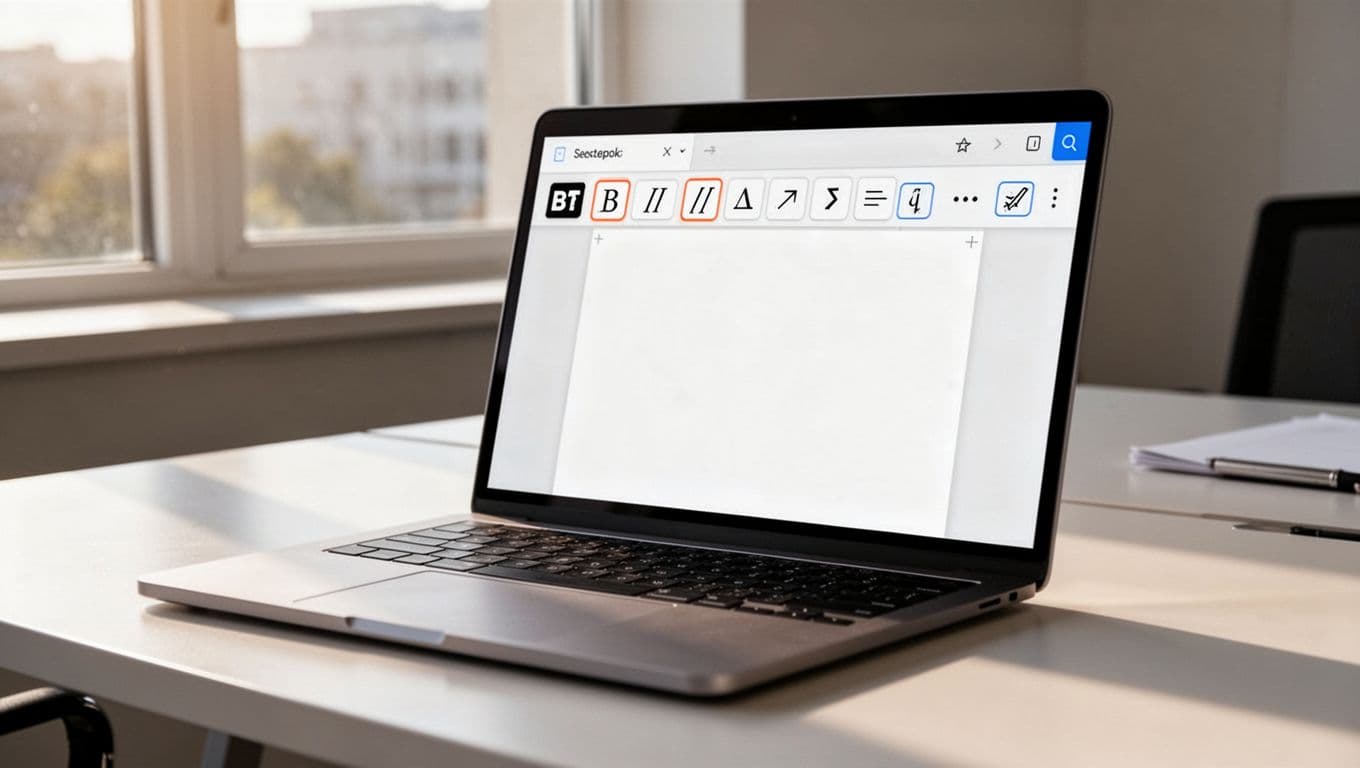
Copy looks easily too. Select formatted text, click the paintbrush icon, then brush over new parts. It pastes the style instantly. Clear all with the eraser icon if you overdo it. For more on formatting text basics, check Microsoft’s steps. These tools turn rough drafts pro in minutes.
Create Bullet Points and Numbered Steps Easily
Lists organize ideas clean. On the Home tab’s Paragraph group, spot bullets and numbering icons. Highlight lines or start fresh; click bullets for dots. Type your first item, press Enter for the next. It adds another bullet automatically. Hit Tab to indent sub-bullets, like nested details. Shift+Tab pulls back out.
Want numbers? Click the numbering icon instead. It starts 1., 2., and so on. Pick styles from dropdowns: squares, arrows, letters, or Roman numerals. Change anytime by right-clicking a list item and selecting Adjust List Indents. For example, outline recipe steps: Number main actions, bullet ingredients under each.

Test it now. Type three goals, bullet them, add subs with Tab. Switch to numbers, tweak a style. As a result, your reports read smooth. See Microsoft’s full list guide for advanced tweaks. Lists shine when you keep them simple.
Insert Images, Tables, Headers, and Shapes
Your text and lists look great now. Next, add visuals from the Insert tab to make documents stand out. Pictures grab attention, shapes highlight ideas, tables organize data, and headers or footers add pro touches like page numbers. However, watch file sizes; big images slow things down, so resize before inserting. Start simple, and you’ll build flyers or reports that impress.
Click Insert on the ribbon. First, add pictures from your device. Pick Pictures > This Device, browse your files, and click Insert. The image lands where your cursor sits. Drag corner handles to resize it; hold Shift for straight proportions. Right-click for options like Add Caption to label it, such as “Weekly sales chart”. For quick help, see Microsoft’s picture insert guide.
Shapes work for diagrams or callouts. Choose Shapes, pick a rectangle or arrow, then click and drag to draw it. Fill with color or add text inside. However, group several together: Select all, right-click, and pick Group. They move as one unit now.
Headers and footers repeat on every page. Go to Insert > Header or Footer, select a style, and type details like your name or page numbers. Double-click the area to edit; Insert > Page Number adds them automatically. Close when done.
Copilot speeds this up too. Type “insert a photo and table for my report” in the pane, and it adds them with smart sizing. Review changes before accepting.
Build a Basic Table for Schedules or Data
Tables hold info neatly, like shopping lists or weekly schedules. Go to Insert > Table. Drag over the grid to pick columns and rows; for example, 3×4 for a simple list. Click to drop it in.
Type your data right away. Headers go bold in the first row. Need more space? Click inside the table; the Layout tab (under Table Tools) appears. Hit Insert Above or Insert Below for rows, Insert Left or Right for columns. Merge cells for titles: Select them, then click Merge Cells on Layout.
Here’s a quick shopping list example:
| Item | Quantity | Price |
|---|---|---|
| Apples | 5 | $4 |
| Bread | 2 loaves | $5 |
| Milk | 1 gallon | $3 |
Adjust borders or shading via Layout > Design for style. As a result, your schedules stay clear and editable. Check Microsoft’s table steps for extras like converting text to tables. Practice on a fake schedule; it takes seconds to master.
Save Your Documents Safely and Share Them
You built a solid document with text, lists, and tables. Now protect it from crashes or lost work. Save often because computers fail sometimes. First, hit Ctrl+S anytime. It locks in changes fast. Pick local folders for quick access or OneDrive for cloud backup. Local saves stay on your device, so you grab them offline easily. However, cloud options sync across phones, tablets, and laptops. As a result, you edit anywhere without hunting files. Plus, OneDrive adds version history to undo big mistakes.
Start your first save right. Click File > Save As. Choose This PC for local or OneDrive under your account. Name it something clear like “MyResume.docx”. Click Save. Next time, Ctrl+S updates it. For PDFs that print perfectly, go File > Save As, pick PDF from the dropdown. Recipients view them without Word.
Use OneDrive for AutoSave and Access Anywhere
Sign into OneDrive first. Click File > Account. Enter your Microsoft email and password. It links everything securely.
New files now save to OneDrive automatically. However, toggle AutoSave on manually for older ones. Spot the slider top-left near your file name. Slide it right; a green dot shows it works. Changes save every few seconds. No more “Not saved” warnings. See how to turn on AutoSave for details.

Share next. Click the Share button top-right. Add emails, set “Can edit” or “Can view”. Or copy a link for anyone. They open it in Word online for real-time changes. Meanwhile, control access anytime. For full steps, check sharing via OneDrive. Save early and often; it keeps your work safe.
Unlock Beginner-Friendly Features in Word 2026
Word 2026 packs fresh tools that ease beginners into pro results. You find AI smarts, eye-friendly views, and quick helpers right on the ribbon. These features build on basics you already know, so pick one or two to try today. As a result, your docs improve fast without extra effort.
Chat with Copilot for Instant Writing Help
Copilot acts like a smart sidekick if you subscribe to Microsoft 365. It drafts text, sums up long parts, or rewrites awkward spots. Open your doc, spot the Copilot pane on the right, or click the icon in the ribbon. Type “summarize this section” or “add a bullet list of key points.” It generates options; pick what fits and edit away.
Save your prompts for reuse too. For example, create a template like “write a polite email closing.” Next time, it pops up ready. However, review outputs because AI sometimes misses your voice. Check draft and add content with Copilot in Word for full steps. Practice on a short note; you’ll save hours weekly.
Grab Design Tab Suggestions for Pro Looks
The Design tab offers smart ideas to polish your whole doc. Click it, and preview themes with matched colors and fonts. Hover to see changes live. Pick one, and it updates headers, text, and spacing instantly. In addition, Designer suggests images or layouts if your content fits.
No design skills needed; it handles the work. For instance, turn a plain list into a sleek report page. See use Designer to create more polished documents for tips. Test it on your last save; results look boss-ready right away.
Listen to Your Doc with Read Aloud
Proofread by ear on the Review tab. Click Read Aloud, and Word speaks your text from the cursor. Control speed or voice with buttons above. It pauses at headings and highlights words as it goes, so you catch errors easily.
Great for multitasking or learning aloud. Meanwhile, pair it with Immersive Reader for focus mode. Follow listen to your Word documents to start. Read your practice note now; you’ll spot fixes you missed.
Switch to Dark Mode and Check What’s New
Dark mode cuts eye strain for late nights. Go File > Account > Office Theme, pick Black or Dark Gray. Your screen dims, but docs print normal. Toggle back anytime.
Meanwhile, hit View > What’s New for version 2603 highlights like better Copilot. Use the Tell Me bar top-right too. Type “dark mode,” and it guides you there. Customize Quick Access Toolbar for favorites. Finally, practice daily: Copilot one day, Read Aloud the next. Your skills grow steady. Check Dark Mode in Word for setup.
Conclusion
You started with Sarah’s panic over a blank Word screen. Now you handle setup, the ribbon tabs, text formatting, lists, images, tables, and saves like a pro. Copilot even jumps in to polish your work. These steps build real skills fast.
Practice on everyday tasks next. Draft that resume or cover letter you need. Add a table for your budget or bullets for a shopping list. As a result, Word feels natural right away.
Advanced tricks like mail merge wait for later posts. Share your first document in the comments below. What did you create? Subscribe for more guides too. You’ve got this.