You open your laptop to grab that urgent report. Instead, you spend 30 minutes digging through a Downloads folder stuffed with duplicates and old memes. Sound familiar? That frustration kills productivity and amps up stress.
Organized files change everything. You save hours each week, find what you need fast, and focus on work or life instead of hunting. This guide covers decluttering first, smart folder setups, naming tricks, platform tools, and cloud sync. It works for Windows, macOS, or any setup in 2026.
Ready to locate any file in seconds?
Declutter Before You Organize: Clear the Chaos
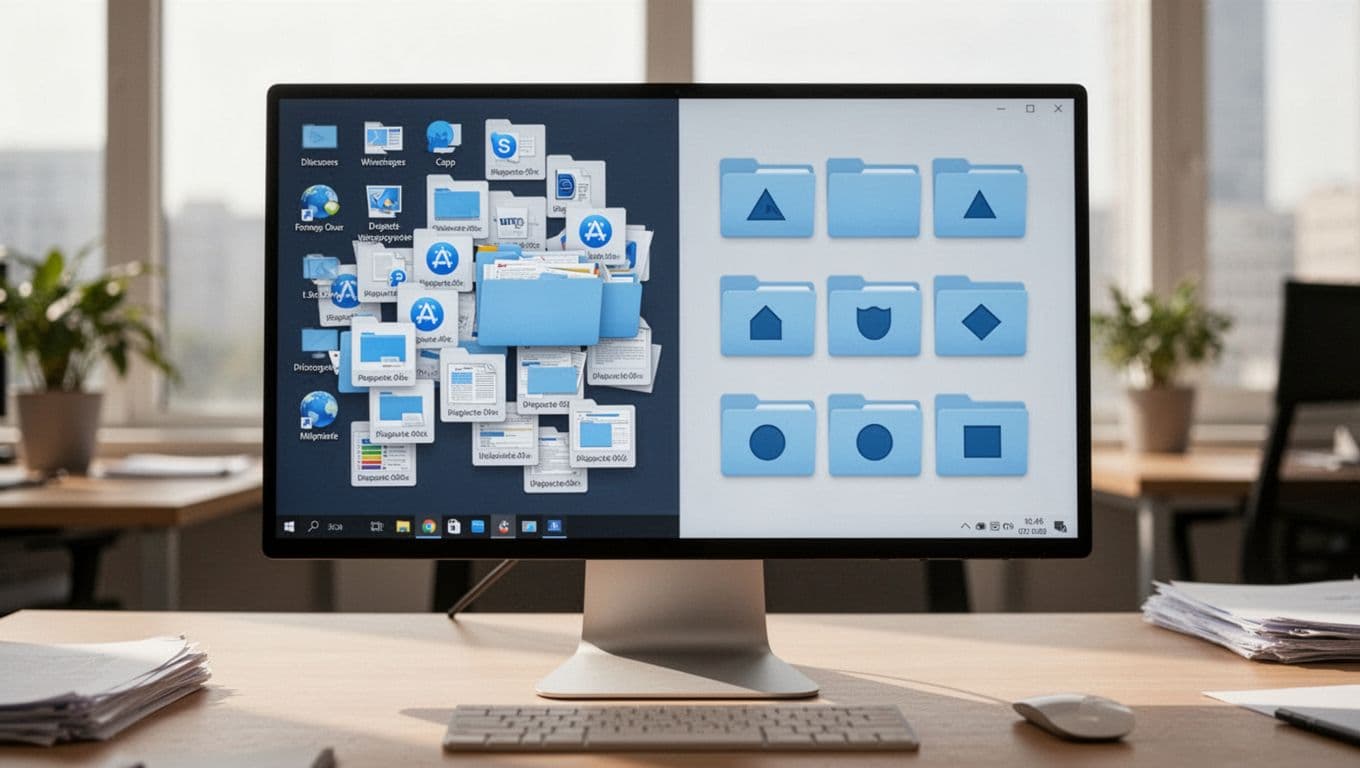
Start with a clean slate. Old junk clogs new systems, so remove it upfront. This step takes under an hour but pays off forever.
On Windows, run Disk Cleanup. Search for it in the Start menu, select your drive, and let it wipe temp files and thumbnails. macOS users open Storage Management from About This Mac. Pick Recommendations to delete large files and empty Trash.
Hunt duplicates next. Sort your folders by size or name. Delete extras manually, or use built-in previews. Empty Downloads weekly; it collects everything unthinkingly.
Archive what you keep but rarely need. Create one “Archive_2026” folder. Move old taxes or vacation pics there. Now your main space breathes.
This clears chaos fast. Future setups stick because you build on solid ground.
Build a Folder Structure That Matches Your Life
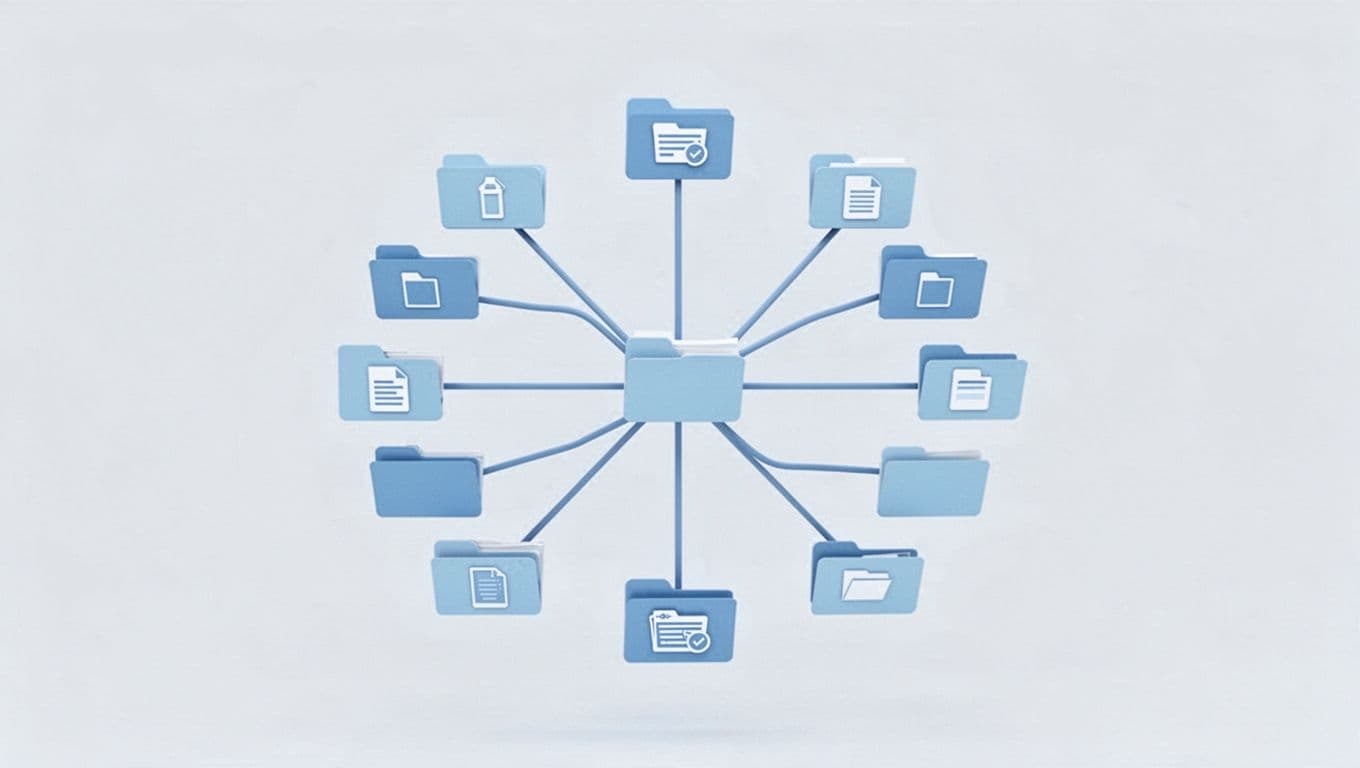
Keep hierarchies shallow, max three or four levels deep. Deep nests hide files. Start with top folders like Work, Personal, and Media.
Pick a method that fits. PARA sorts by action: Projects, Areas, Resources, Archives. Project-based works for tasks, like /Work/ClientX. Date-based suits photos, such as /2026/April.
Stick to one system. Consistency beats perfection. Examples help: put family pics in /Personal/Photos/2026, reports in /Work/Reports_Q2.
Shallow paths mean quick clicks. No more lost scrolls.
PARA Method: Handle Projects, Responsibilities, and More
PARA shines for mixed life demands. Tiago Forte created it for clarity.
Projects hold active goals with deadlines, like /Projects/WebsiteRedesign. Areas cover ongoing duties, such as /Areas/Health or /Areas/Finances.
Resources store references, think /Resources/Topics/WebDesign. Archives dump completed items, /Archives/OldProjects.
This setup mixes work and home without overlap. For details, check this pragmatic PARA guide.
Project or Date-Based: Tailor to Your Workflow
Project folders suit pros. Try /Work/2026_Q1/ClientX/Contracts. Everything stays task-focused.
Date structures fit media. Use /Photos/2026/April/Vacation. Bills go to /Finances/2026/April.
Add a README.txt inside folders. Note contents or next steps. It guides you later.
Choose based on use. Work pros love projects; families prefer dates.
Name and Tag Files for Instant Searches
Names drive searches. Use dates first: YYYY-MM-DD_Report_ClientX.docx. Descriptive words follow.
Skip spaces; underscores or hyphens work better. “2026-04-01_Invoice_A.pdf” finds easy.
Tags add power. macOS colors flag “Urgent” red. Windows keywords search metadata.
Spotlight on macOS scans content. File Explorer on Windows indexes names and tags.
Multi-tags handle overlaps. One file tags as “Work” and “Finance.” No digging required.
Clear names plus tags mean instant access.
Use Platform Tools and AI to Automate the Work
Built-ins speed things up. Automation handles repeats.
AI takes it further in 2026. Tools sort without effort.
Windows and macOS Built-In Shortcuts
Windows pins favorites to Quick Access. Right-click, select Pin. Libraries group Docs and Pictures smartly.
macOS Stacks auto-groups by type or date in Finder. Add color tags via Get Info.
Spotlight searches keywords anywhere. Copilot in Windows File Explorer chats for files, like “meeting notes last week.”
These basics cut clicks daily.
| Platform | Key Feature | Quick Tip |
|---|---|---|
| Windows | Quick Access Pins | Right-click to pin frequent folders |
| macOS | Finder Stacks & Tags | Drag to group; color for priority |
Pinning and stacks organize passively.
AI Tools That Sort Files for You
Sparkle cleans Downloads automatically. It runs on macOS and Windows, sorts to smart folders. Free tier starts simple.
The Drive AI chats to organize, like “sort project files.” Works cross-platform with Drive services.
AI File Sorter renames offline, no cloud needed. For teams, Dropbox Dash stacks by project.
Start basic; add AI later. See top AI organizers for 2026.
Sync Everything to the Cloud for Access Anywhere
Cloud backups files across devices. Access from phone or work PC.
OneDrive integrates deep on Windows. iCloud handles macOS seamless. Google Drive fits all.
Set Desktop and Documents to sync. Mount as local drives with apps like RaiDrive.
Apply your structure inside, PARA in Drive works great. Weekly reviews keep sync tidy.
Consistent names prevent dupes. Cloud means no local loss.
Organized files save time and stress. Declutter first, build structures like PARA, name smart, automate with tools, sync to cloud.
Pick one step today: try PARA or Sparkle. You’ll find files in seconds soon.
Share your folder wins in comments. What setup changed your day?