You grab that USB drive from your desk drawer to back up family photos. It looks fine. But plug it in, and malware could spread fast. In 2026, external storage devices like USBs, external hard drives, and SSDs cause real headaches. NIST’s SP 1334 report from late 2025 shows these tools often carry viruses to factories and computers. Over 30% of USB attacks hit key systems. Many lead to outages or data grabs.
These risks hit everyone. Home users lose files to theft. Businesses face shutdowns from sneaky infections. Lost drives expose unencrypted info. Yet simple habits fix most problems. This guide covers dangers first. Then you learn to pick secure gear. Next come easy steps for daily use. Finally, pro tips seal the deal. Follow along, and you’ll protect your data without hassle.
Why External Storage Devices Can Put Your Data at Risk
External drives seem harmless. They move files quick. But threats lurk. Malware hides inside. Drives get lost. Sneaky features auto-launch bugs. NIST SP 1334 details how these hit air-gapped setups. Factories suffer most. So do everyday PCs. Spot these now to stay safe.
Malware Hiding on Your Drive
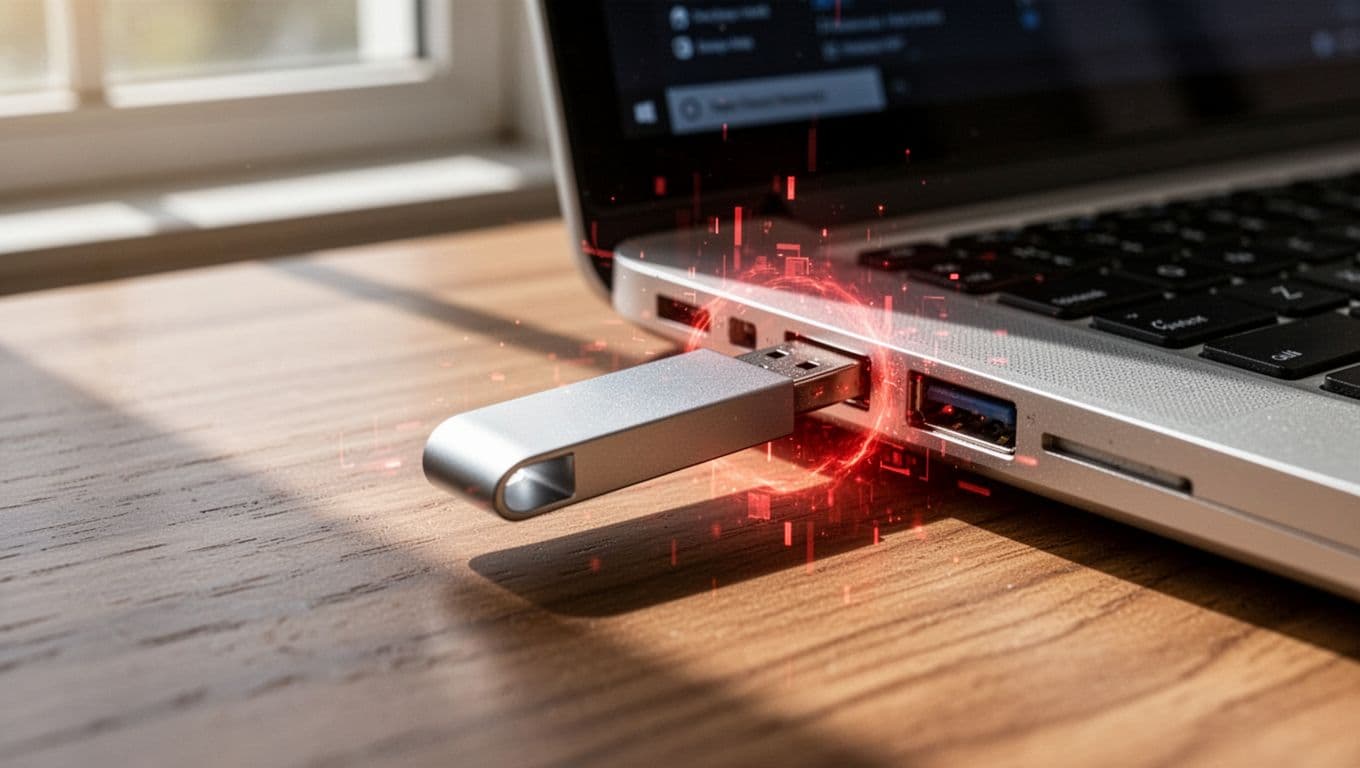
Viruses love USB sticks. Plug one in, and it infects your PC. BadUSB turns the drive into a fake keyboard. It types commands to steal data. Factories shut down from one bad stick. Scammers drop infected drives in parking lots. Curious folks pick them up. Boom, trouble starts. Always scan unknowns. Because free drives cost big later.
Losing Drives Means Losing Data
You misplace a thumb drive at the airport. Files sit open for thieves. No encryption means anyone reads your photos or docs. Identity theft follows. Work secrets leak too. Gartner notes high breach odds from lost gear. Lock files tight from day one. That way, loss hurts less.
Autorun Tricks and Other Sneaky Threats
Old Windows autorun runs files on plug-in. Malware loves it. A virus plays and spreads. Disable that feature. Untrusted sources add risks. Coworkers share bad drives. Insiders steal data quiet. Check sources first. Block extras. Simple changes stop most tricks.
Pick the Right External Drives for Top Security
Not all drives equal. Cheap ones lack protection. Pick ones built safe in 2026. Look for hardware encryption. Tamper-proof designs. Speed matters too. USB 3.2 moves data fast without weak spots. Trusted brands sign firmware. They fight BadUSB. Buy smart, sleep better.
Look for These Must-Have Security Features
Start with FIPS 140-3 Level 3 certification. It proves strong encryption. XTS-AES 256-bit scrambles data tough. Passwords lock access. Auto-lock after idle time. Write-protection blocks changes. Epoxy seals stop tampering. Auto-wipe clears after failed tries. CrowdStrike urges these basics. Microsoft agrees. Avoid no-name bargains. They hide flaws.
New Tech Making Drives Safer Than Ever
Non-reprogrammable chips block firmware hacks. Endpoint tools integrate direct. Like Falcon Device Control from CrowdStrike. SSDs shine here. Kingston’s IronKey series hits FIPS 140-3 Level 3, per their 2026 announcement. iStorage offers sealed SSDs too. These beat old HDDs. Faster. Tougher. Pick them for peace.
Simple Steps to Use Any External Drive Safely
Ready for action? Follow these steps every time. They block 99% of threats. Update tools first. Work on a clean PC. No skips. Build the habit. Your data stays yours.
Always Scan Before You Open Files
Grab your antivirus. Microsoft Defender works free. Update it fresh. Plug the drive into a safe machine. Run a full scan. Wait for clear. Only then copy files. Because malware hides deep. Quick checks miss it. Do this on every drive, known or not.
Encrypt Your Files from the Start
Hardware beats software. Drives with built-in keys shine. Set a strong password. Use 12 characters, mix types. Tools like BitLocker help on Windows. Or pick FIPS drives. Encrypt before you fill it. Test access first. Locked files stay safe if lost.
Turn Off Autorun and Control Access
Windows autorun invites bugs. Disable it quick. Search “autorun” in settings. Set to off. Whitelist good drives by ID. Block others with Group Policy. Free tools help. Plug only trusted ones. If unsure, skip it.
Handle and Store Drives with Care
Plug gentle, no force. Unplug safe with eject. Lock in cases for travel. Track with labels. Dispose right. Wipe with DBAN tool. Then smash physical. NIST SP 1334 backs this in their full guide. Safe habits last.
Advanced Tips to Lock Down Your Data for Good
Basic steps cover most. Add these for extra shield. They fit home or work. Monitor use. Set rules. Respond fast to issues. Pros use them daily. You can too.
Set Up Monitoring and Policies at Home or Work
Log every plug-in. Tools track who, when. Whitelist by hash. DLP software blocks leaks. Like CurrentWare tips. Train family or team. Treat drives like cash. Buy only from PCMag-tested spots, such as their 2026 external drive picks. Layers win.
What to Do If You Lose a Drive or Spot Trouble
Lost it? Trigger remote wipe if smart drive. Change all passwords now. Report to IT or police. Spot odd files? Isolate PC. Scan deep. Restore from backup. Act fast cuts damage.
Safe use starts today. Scan every drive. Encrypt files always. Pick gear with FIPS seals. Disable autorun. Store smart. These habits block malware, theft, tricks. NIST makes it easier in 2026. Your data stays private.
Try one step now. Scan that old USB. Share your go-to tip in comments. Subscribe for more safety guides. Stay protected.