Picture this. You’re racing against a deadline. Your boss needs that report now. You dig through folders for 30 minutes. Finally, you spot it: “final_report_v2 (1).docx” buried in Downloads. Sound familiar? That mess happens because we skip smart habits for renaming files properly, moving them right, and deleting with care.
Poor organization wastes hours each week. Files pile up with vague names like IMG_1234.jpg. Folders turn into chaos. You risk losing data forever. But good practices fix that. They keep everything sorted, easy to find, and safe.
This guide shows simple steps for Windows, Mac, Linux, and phones. You’ll learn quick shortcuts, batch tricks, naming rules, moving tips, safe deletes, and power tools. Plus, dodge common pitfalls. Follow along, and you’ll tame your files in minutes. Ready to end the hunt?
Rename Files Fast and Smart on Windows, Mac, Linux, or Phone
Start with single files. Most systems make it easy. Right-click the file. Pick Rename. Or use a key. Windows loves F2. It highlights the name right away. Type your new one. Hit Enter.
Mac needs a slow double-click. Or Control-click then Rename. Linux file managers like Nautilus use right-click too. Phones work with long-press in the Files app. Always preview before you commit. That avoids typos.
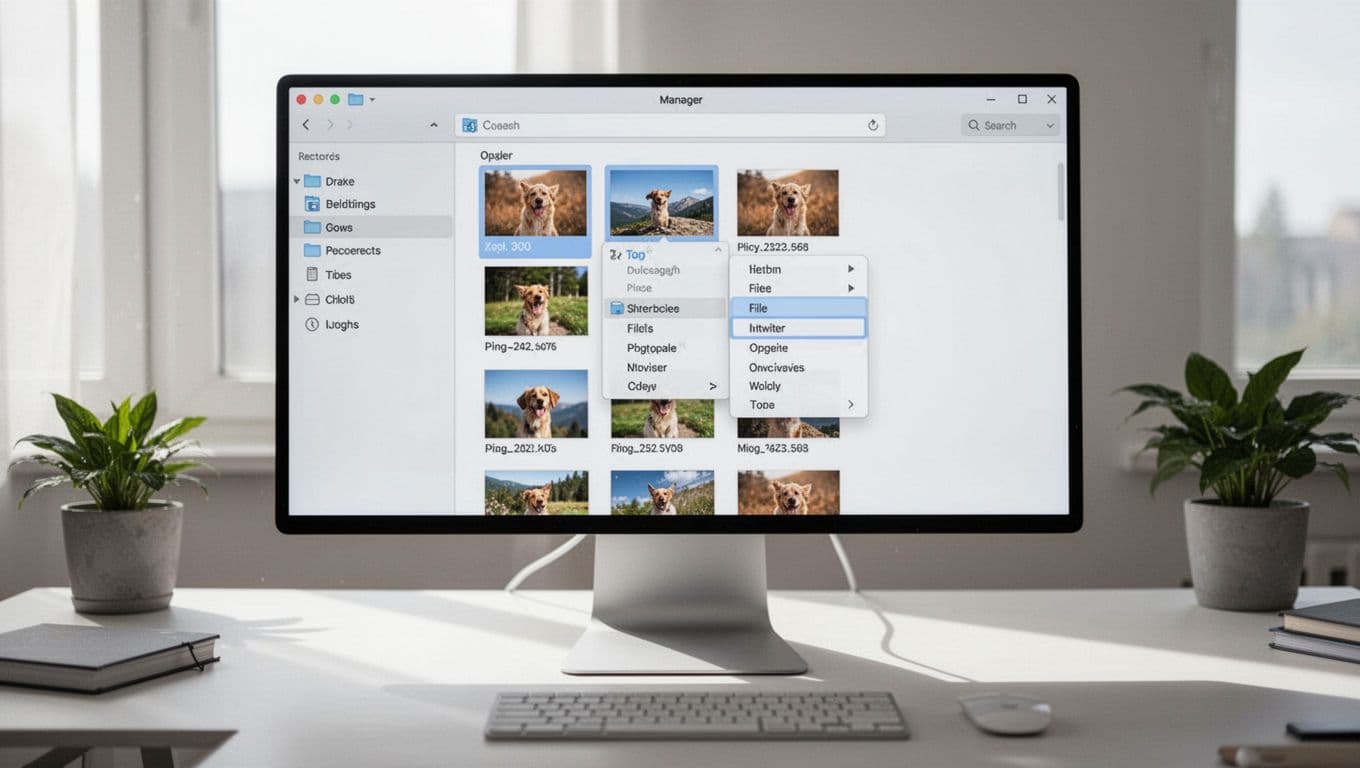
Batch renaming saves real time. Select multiples first. Hold Ctrl on Windows or Command on Mac. Or Shift for a range. Then right-click Rename. Systems add numbers like file (1), file (2). Perfect for photos from a trip.
But go further with rules. Use lowercase letters. Swap spaces for underscores or hyphens. Add dates in ISO format, like 2026-04-15. Tag versions as v1 or final. These habits make files sort naturally.
Undo stays your friend. Ctrl+Z or Command+Z brings it back fast. Test on copies first if you’re unsure.
Quick Shortcuts for Single Files on Every Device
Windows shines here. Right-click a file. Choose Rename. Or tap F2. The name lights up blue. Edit and press Enter.
Mac feels slower. Click the name. Pause. Click again. Or Control-click for Rename. Type fast.
Linux keeps it simple. In Nautilus or Dolphin, right-click Rename. Or F2 works too.
On iOS or Android, open Files. Long-press a file. Tap Rename. Preview shows your change.
Always check the extension stays put, like .jpg. Hit Escape to cancel.
Batch Rename Multiple Files Without the Hassle
Hold Ctrl or Command to grab several files. Right-click the group. Select Rename. Windows adds (1), (2), etc. Mac does the same in Finder.
For power, grab third-party help. Tools like Advanced Renamer handle regex, dates, and case shifts across Windows and Mac. Preview every change first.
Say you have 50 trip photos. Add the date shot: 2026-04-15_photo01.jpg. Select all with Ctrl+A. Right-click Rename. Boom, done.
Windows users like Bulk Rename Utility for free power. Mac has NameChanger built-in, but Hazel adds rules for $42.
File Naming Rules That Prevent Future Chaos
Stick to all lowercase: meeting_notes.pdf beats Meeting Notes.PDF. It sorts better.
Replace spaces with _ or -. So project-plan.docx, not project plan.docx. Spaces confuse searches.
Dates go YYYY-MM-DD. Like 2026-04-15_budget.xlsx. Chronological order happens automatically.
Versions use v1, v2. Or add _final. Skip (final) or Copy of.
Bad examples? IMG_4827.jpg tells nothing. New_Doc_2026-4-15 (2).docx sorts wrong.
Good ones shine: 2026-04-15_client-meeting_notes_v2.pdf. Follow these best practices for teams. They work everywhere, from cloud to phone.
Move Files Smoothly to the Right Spot Every Time
Cut beats copy for moves. Select files. Ctrl+X on Windows, Command+X on Mac. Navigate to the target folder. Ctrl+V or Command+V pastes. Done.
Drag works too. Hold files and pull to the new spot. But watch the preview. It shows copy or move.
Folders stay organized this way. Keep Downloads clear. Sort docs to Documents, pics to Pictures.
Automation helps busy folks. Set watchers to move files by rules. No manual work.
Linux uses mv in terminal, but GUI drag is safer. Phones let you drag in Files.
Moving saves space unlike copying. Avoid overwrites by renaming first.
Keyboard Shortcuts and Drag-and-Drop Tricks
Select your files. Ctrl+X to cut. Arrow keys navigate folders fast.
Windows Explorer has a Move to button on the toolbar. Mac Finder mirrors it.
Linux Nautilus supports drag between panes. Open two windows side-by-side.
On phones, long-press then drag. Or pick Move from the menu.

Preview the path. Windows tabs (new in 2026) make jumps easy.
Set Up Auto-Moving with Folder Watchers
Tools like File Juggler on Windows watch Downloads. Rule: if name has “bank”, move to Finance.
Mac’s Hazel scans for patterns. PDFs with dates go to Invoices. Free trial available.
Both cost around $30-40 yearly. Set once, forget.
Linux scripts with inotify do similar. Benefits stack up for repeat tasks.
Delete Files Safely and Undo Mistakes in Seconds
Hit Delete on Windows. Files hit Recycle Bin. Mac uses Command+Delete for Trash.
Check the bin before emptying. Right-click Restore if wrong.
Bulk works: select all, Delete. Linux right-click to Trash or Shift+Delete for gone.
Phones swipe left. Files go to Recently Deleted.
Always pause. Trash saves your skin most times.
Standard Delete vs Permanent Wipe
Standard Delete recovers easy. Open Recycle Bin or Trash. Drag back out.
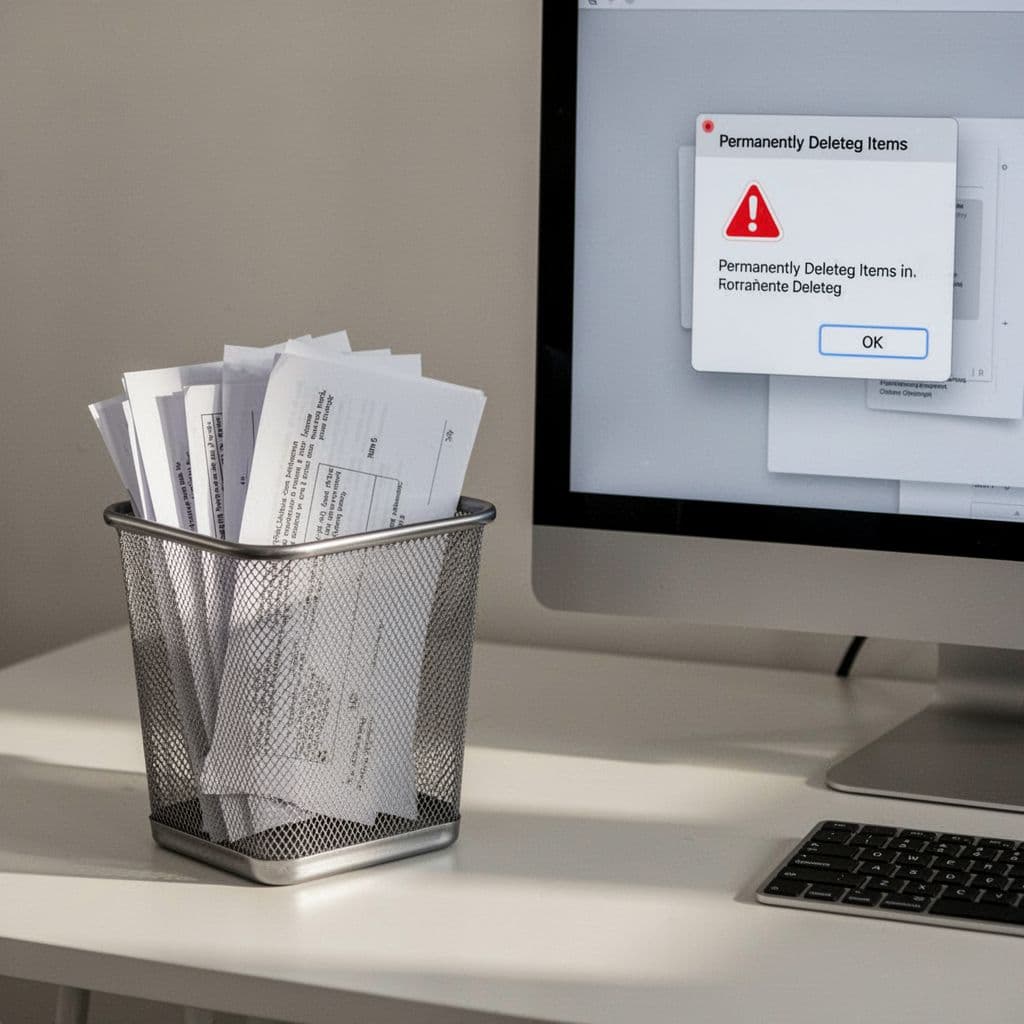
Permanent skips it. Windows Shift+Delete. Mac Option-Command-Delete. Linux rm skips trash; use rm -rf with care.
Backup first. Recovery tools like Disk Drill grab even emptied files sometimes.
Handling Deletions on Phones and Tablets
iOS Files sends to Recently Deleted. Check 30 days. Android Trash holds 30-60 days.
Long-press, tap Delete. No easy bulk, so select few.
Cloud sync? iCloud or Google Drive keeps copies. Swipe careful.

Power Tools and Pitfalls to Master File Management
Total Commander rules 2026 for Windows. Batch rename, move huge sets. Plugins add sorts.
Advanced Renamer does cross-platform bulk. Check top tools here.
Hazel and File Juggler automate moves. Watch folders, apply rules.
Linux CLI: mv file newpath; rm careful.
Windows 2026 adds voice rename in Explorer. Say the name.
Pitfalls? Vague names hide files. Bad chars like / break paths. Forget undo. Skip standards.
| OS | Rename Key | Cut | Delete |
|---|---|---|---|
| Windows | F2 | Ctrl+X | Delete |
| Mac | Enter dbl | Cmd+X | Cmd+Delete |
| Linux | F2 | Ctrl+X | Delete |
| Phone | Long-press | – | Swipe |
Try one tip now. Audit Downloads today.
Master these, and your files stay tame. Smart names sort themselves. Shortcuts speed you up. Safe deletes protect data. Tools handle bulk.
Check your Downloads folder right now. Apply a rename rule. You’ll save hours weekly.
What’s your worst file nightmare? Share in comments. Subscribe for more hacks on clean digital spaces.