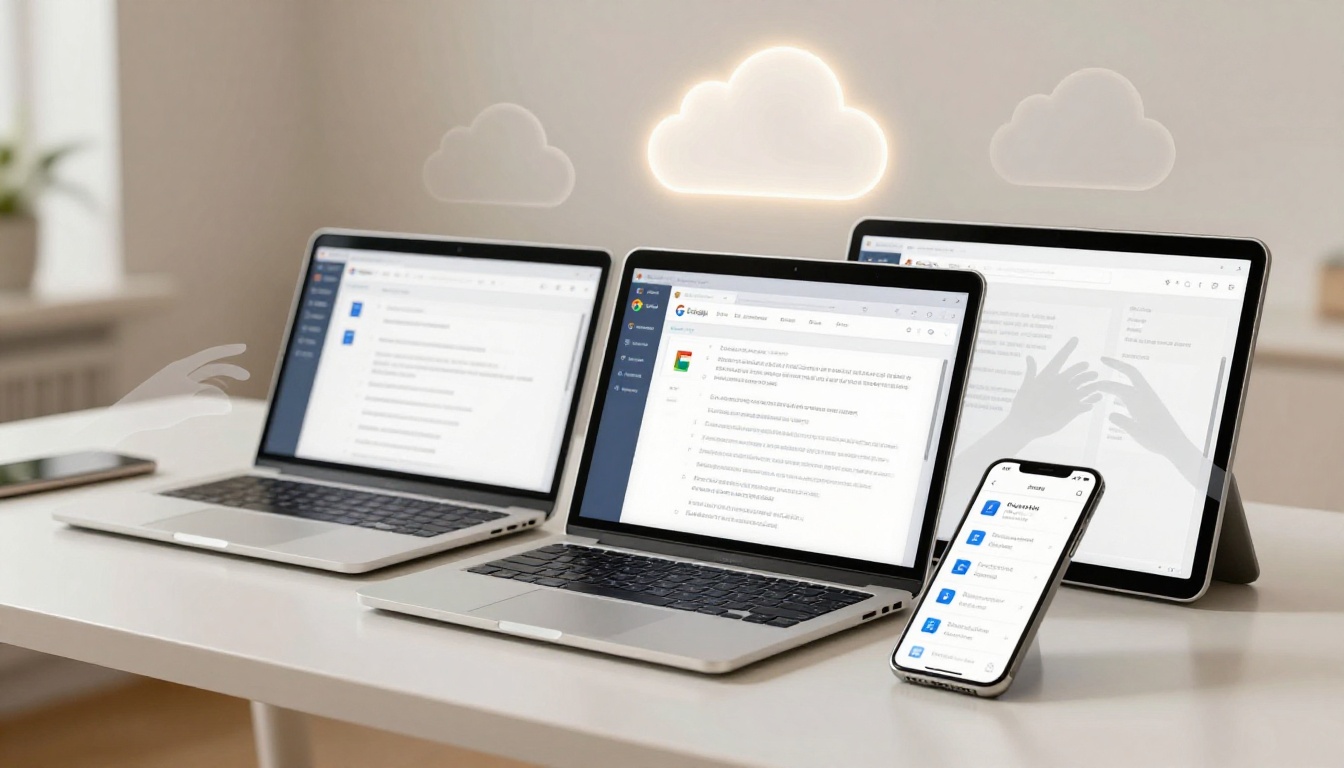
Tired of chasing down the latest version of your Word doc amid a flood of email attachments?
You’ve probably lost hours to crashes or formatting fights between team members.
Google Docs changes that game.
This free, cloud-based tool autosaves your work every keystroke, so you never lose progress.
Pull it up on your phone, laptop, or tablet from anywhere with internet.
It shines brightest for teamwork, too.
Real-time collaboration lets multiple people edit together and see changes instantly.
Voice typing turns speech into text fast, perfect for brainstorming on the go.
Now, 2026 brings exciting Gemini AI upgrades.
Gemini matches your writing style, auto-fills details from emails, or generates checklists and summaries on command.
These boosts make drafting and editing quicker than ever.
In this post, we cover Google Docs for writing from the basics to sharing files, advanced editing tools, AI features, and time-saving tips.
You’ll walk away ready to master it all in minutes.
Get Started with Creating and Basic Editing in Google Docs
Ready to dive right in? Google Docs makes it simple to create a Google Doc without downloads or hassle. You just need a free Google account and a web browser. Auto-save keeps everything safe, and changes sync across devices. Beginners love how quick it feels. Let’s walk through the first steps together, then tackle basic formatting in Google Docs.
Signing In and Launching Your First Document
First, grab your laptop or phone. Head to docs.google.com in any browser like Chrome. If you use the Google apps grid (that nine-dot icon up top), click Docs there too. Sign in with your free Google account. No account yet? Create one in seconds at accounts.google.com.
Now, start fresh:
- On the home screen, click Blank under “Start a new document.” Boom, your doc opens.
- Or pick a template for resumes or letters. Click Template gallery for options.
- Name it right away. Click “Untitled document” at the top left. Hit Enter to save the name. It auto-saves to Google Drive, so pick a folder if you want.
Changes save every keystroke. No more “Did it save?” worries. Undo mistakes with Ctrl+Z (Cmd+Z on Mac). Redo with Ctrl+Y.
Grab the official Google guide for visuals if needed. On mobile? Download the free Google Docs app from your store. Tap the + icon for blank docs there too. So easy, right?

Master Everyday Formatting and Insertions
Once your doc loads, spot the toolbar. Menus like File, Edit, and Format sit at the top. File handles print or download. Edit offers cut, copy, paste. Format tweaks alignment or line spacing.
Shortcuts speed things up. Here’s a quick list of must-know ones:
- Bold: Ctrl+B. Makes text pop, like this.
- Italic: Ctrl+I. Adds emphasis, perfect for names.
- Underline: Ctrl+U. Draws a line below.
- Headings: Ctrl+Alt+1 for big titles, Ctrl+Alt+2 for subs.
- Bulleted list: Ctrl+Shift+8.
- Numbered list: Ctrl+Shift+7.
Change fonts or colors? Highlight text. Pick from the dropdowns in the toolbar. For example, Arial to Times New Roman, or blue text for highlights.
Need images? Place your cursor. Go to Insert > Image. Upload from your computer, search the web, or pull from Drive. Resize by dragging corners.
Tables work great for data. Insert > Table. Pick rows and columns, say 3×3. Type inside cells. Right-click for borders or colors.

These tools feel intuitive after a few tries. Experiment now. Your first doc will look pro in minutes.
Collaborate Seamlessly with Teammates in Real Time
Google Docs turns solo writing into a team effort. You and your coworkers edit the same file at once. Everyone sees changes live, with colored cursors showing who’s typing where. No more version confusion or endless email chains. Instead, watch ideas flow in real time. This works perfect for work groups or school projects.

Sharing Your Doc and Setting Permissions
Click the blue Share button in the top right corner. A box pops up. Type in email addresses or Google groups.
Next, pick roles for each person. Editors make full changes. Commenters add notes but can’t edit. Viewers read only. For quick shares, copy the link and set it to “Anyone with the link.” Choose Editor, Commenter, or Viewer there too.
For private docs, stick to specific emails. Turn off link sharing if needed. Go to Tools > Notification settings to get alerts on changes. This keeps sensitive work safe.
Here’s how to share step by step:
- Hit Share.
- Add emails.
- Select roles from the dropdown.
- Click Send or Copy link.
- Adjust advanced settings like expiration dates for temp access.
Check Google’s sharing basics for more details. Once shared, teammates jump in with their own color cursors.

Using Comments, Suggestions, and Chat for Feedback
Highlight text and click the comment bubble on the right. Type your note. Use @mention to ping someone, like @John. They get a notification right away.
Switch to Suggestions mode for track changes. Edits show as proposed tweaks. Accept or reject them easy. This beats messy email threads because feedback stays in the doc.
Find the chat icon up top for quick talks. It opens a side panel. Everyone in the doc sees messages live. Perfect for questions during edits.
Turn on notifications first. Go to Tools > Notification settings. Pick alerts for all changes or just mentions. As a result, you stay looped in without constant checks.
In short, these tools cut confusion. Your team stays aligned, and docs improve fast.
Explore Advanced Editing Tools for Pro Results
Power users love advanced Google Docs features. These tools turn basic docs into pro-level work. You dictate reports hands-free or generate images on demand. Long essays stay organized, and files from anywhere edit smoothly. Best part? Everything stays secure in encrypted docs. Let’s jump into these game boosters.
Type by Voice and Organize with Tabs
Ever pounded out a report but your hands cramped up? Voice typing in Google Docs fixes that fast. It turns speech to text in over 20 languages. Perfect for essays or brainstorming aloud.
Start simple. Place your cursor. Go to Tools > Voice typing. A mic pops up. Click it, then speak clearly. Say “new line” or “period” for punctuation. Stop with the mic button or “stop listening.” Works offline too for basics.
Here’s the full process:
- Open your doc.
- Click Tools > Voice typing.
- Grant mic access if asked.
- Speak your content.
- Edit as needed; it auto-capitalizes.
For long projects, add tabs to split sections. Go to Insert > Tabs. Name each one, like “Intro” or “Data.” Jump between them easy. This keeps outlines tidy, so you find report parts quick. Benefits stack up: faster drafting, less scrolling, better focus. Teammates react with emoji reactions on comments for quick thumbs-up.
Check Google’s voice typing guide for tips. Your next essay flies by.

Handle Images, Audio, and Other File Types Effortlessly
Need visuals without leaving Docs? Imagen 4 generates them via Gemini. Go to Insert > Image > Help me create. Describe it, like “sunny office desk.” Pick style or ratio. Insert and resize. Great for reports needing charts.
Audio summaries save time too. Gemini reads key points aloud. Right-click your doc or select text, then choose “Summarize with audio.” Listen on the go; it highlights sources.
Edit Word or PDFs without downloads. Upload to Drive. Right-click, pick Open with > Google Docs. Tweak text or format. Changes save back as Doc or export. No software needed, and it handles complex files well.
Pro tip: Use review changes under Tools. Gemini suggests fixes grounded in your content. Accept tracked edits or emoji-react to comments. All secure in encrypted files.
Follow Google’s image generation steps for best results. These features make you unstoppable.
Boost Your Workflow with Gemini AI Features in Google Docs
Google rolled out Gemini AI in Docs during early 2026 as a beta for Ultra and Pro subscribers. This update pulls from your Drive, Gmail, and more to speed up writing. Businesses and schools access it through Workspace plans, but rollout happens gradually. You gain an edge because these tools handle drafts and edits fast. Plus, you future-proof your skills with Gemini in Google Docs. Always review AI output for accuracy, though. It bases suggestions on your data, yet double-check facts.
Generate Drafts and Match Styles Instantly
Click the Gemini icon in the side panel. It opens chat-like prompts right in your Doc. Type a simple request like “Help me create a report draft from my sales notes in Drive.”
Gemini builds a full first draft. It matches your current doc’s style and format automatically. Want it to mimic a sample? Upload one first. For example, say “Help me create an email newsletter matching this template’s tone and layout.” It scans emails or files for details, then generates content.
Follow these steps for quick results:
- Open a blank Doc or existing one.
- Click the Gemini sparkle icon on the left.
- Enter your prompt, like “Generate a project summary using my meeting notes from Gmail.”
- Pick options to refine, such as tone or length.
- Insert the draft and edit as needed.
This saves hours on outlines. Test it with your own notes for a sales report. Results feel tailored because Gemini adapts to your voice.

See Google’s writing improvements guide for prompt ideas.
Get Accurate Edits with Grounded Prompts and Drive Search
Grounded writing keeps Gemini tied to your sources. It avoids made-up info by basing drafts on files, emails, or Drive content you specify. For instance, prompt “Rewrite this section grounded in my research PDF on sleep benefits.” Gemini cites sources inline, so you verify easy.
Drive’s AI Overview helps too. Search naturally, like “benefits of sleep from my files.” It summarizes top results with links, no digging required. Pull those into Docs for edits.
Tips for best results include these steps:
- Keep prompts simple and specific, such as “Summarize key points from Q1 report.”
- Cite sources in your ask to ground responses.
- Review and tweak outputs; AI shines but needs your touch.
- Use Ultra for higher limits on complex tasks.
In short, combine grounded prompts with Drive search. Your AI writing in Google Docs 2026 stays reliable. Check the Workspace Gemini updates for rollout details.

Conclusion
You now know the easy start with basic editing and formatting.
Teamwork shines through real-time shares and comments.
Advanced tools like voice typing and AI image generation add pro touches, while Gemini drafts save hours.
Google Docs ends those version chases from the start.
It keeps your work safe and synced everywhere.
Most importantly, these steps let you master writing and editing fast.
Try sharing a doc today or fire up a Gemini draft.
Explore templates next, grab the mobile app, or upgrade to Workspace.
What’s your top tip? Comment below, share this post, and subscribe for more. Start using Google Docs today.