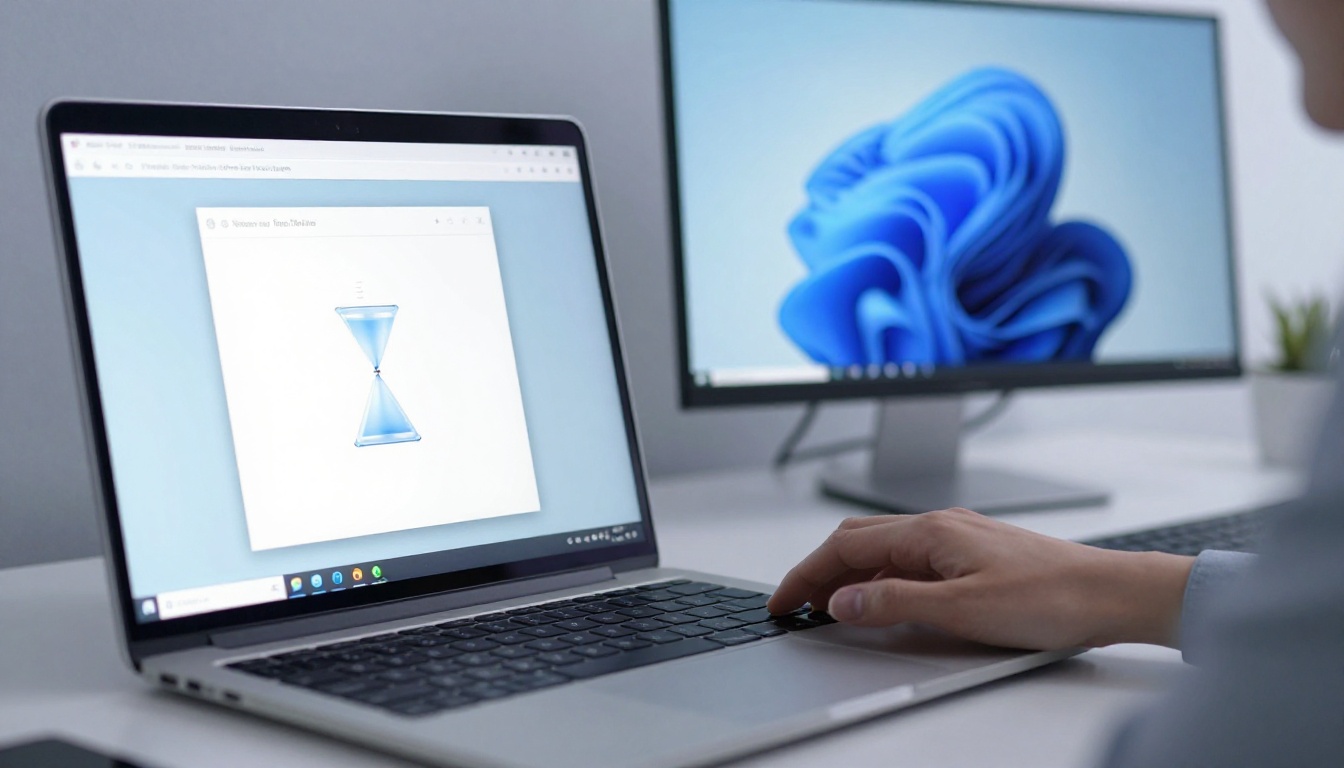
Picture this: you’re deep into editing a report or gaming online. Suddenly, the screen locks up. Your clicks do nothing. That program stops responding message pops up, and frustration hits hard.
This happens to everyone. Apps hang because they overload your system or hit a glitch. In April 2026, with Windows 11 25H2 and macOS Tahoe 26.4, heavy multitasking makes it common. Don’t worry. You can regain control fast.
We’ll cover quick force quits for now, why it keeps happening, and prevention tips. First, let’s close that frozen app without a full restart.
Snap Out of It: Force Close the Frozen App Right Now
When an app freezes, act quick. Force closing ends the hang and frees your system. You might lose unsaved work, so save often ahead of time. Most apps reopen where you left off.
This method works on both Windows and Mac. It takes seconds. After closing, check if the app restarts fine. If not, move to deeper fixes.
Windows Users: Use Task Manager Like a Pro
Press Ctrl + Alt + Delete right away. A blue screen appears. Select Task Manager.
Find your frozen app in the Processes tab. It shows as “Not responding.” Right-click it. Choose End Task.
Task Manager also reveals culprits. Sort by CPU or Memory column. High usage means resource strain. End those too if needed.
For explorer.exe freezes (desktop icons vanish), restart it here. Right-click explorer.exe in Task Manager. Pick Restart.
Need more details? Check this guide to force closing unresponsive apps in Windows.
- Hit Ctrl + Shift + Esc for direct Task Manager access.
- Click the app name.
- Select End Task. Confirm if asked.
Your PC responds again. Test the app later.
Mac Folks: Master Force Quit in Seconds
On Mac, press Command + Option + Escape. The Force Quit window opens.
Pick the frozen app. It says “Not Responding.” Click Force Quit.
If that fails, open Activity Monitor. Search Spotlight for it (Command + Space). Go to CPU or Memory tab. Select the app. Click the X to quit.
macOS Tahoe 26.4 handles hangs better with its updates. Still, force quit saves time.
Try these steps:
- Command + Option + Escape.
- Highlight the app.
- Force Quit.
For stubborn cases, use Activity Monitor for a full view. See tips on using Force Quit and Activity Monitor.
Restart your Mac if multiple apps freeze. That clears temporary glitches.
Dig Deeper: Uncover Why Your Program Keeps Freezing
Force quitting helps now. Repeated freezes point to root causes. Check your system next.
Top reasons in 2026 include memory overload, outdated software, and full drives. Windows 11 25H2 and macOS Tahoe 26.4 run smooth, but apps like browsers or AI tools hog resources.
Open Task Manager (Windows) or Activity Monitor (Mac). Watch CPU, memory, and disk. Spikes show problems.
Examples help. A browser with 50 tabs eats RAM. Close extras. Or an old app clashes with updates.
Run disk checks too. On Windows, search chkdsk in Start. Schedule a scan. Mac users open Disk Utility. Run First Aid.
For a full list of causes, see this 2026 troubleshooting guide for Windows and macOS.
Running Too Many Apps? Here’s How to Spot and Fix It
Too many open apps strain your system. They compete for RAM and CPU.
In Task Manager, sort by Memory. Top users stand out. End unneeded ones.
On Mac, Activity Monitor works the same. Quit background hogs.
Disable startup apps. Windows: Task Manager Startup tab. Right-click and Disable.
Mac: System Settings, General, Login Items. Remove extras.
Fewer apps mean fewer freezes. Keep 4-6 open max for smooth work.
Low RAM or Hardware Hiccups Holding You Back
Low RAM causes most hangs. Modern apps need 16GB or more.
Check usage. If over 90%, upgrade RAM. Signs include constant swapping to disk.
Hardware fails show as random freezes. Overheating too. Feel your laptop; clean vents.
Run memory tests. Windows: md sched in search. Restart for check.
Mac: Apple Diagnostics at startup (hold D).
Full storage slows everything. Free 20% space. Delete temp files.
These checks pinpoint issues. Fix them before they worsen.
Lock It Down: Proven Ways to Prevent Freezes for Good
Quick fixes and diagnosis help. Prevention stops repeats.
Update everything first. Outdated OS or apps cause clashes.
Clean your system. Free space and limit startups.
In 2026, AI features in apps eat resources. Close them when idle.
If freezes persist, test hardware. Pros can check drives or RAM.
Keep Everything Updated and Your System Lean
Updates fix bugs. Windows 11 25H2 gets April patches now. Go Settings, Windows Update, Check for updates.
Mac: System Settings, General, Software Update. Install macOS Tahoe 26.4.
Update apps too. Use Microsoft Store or App Store.
Drivers matter. Windows Device Manager, right-click devices, Update driver.
Clear junk. Windows Disk Cleanup. Search for it. Mac Disk Utility, erase free space.
Lean systems run fast. Updates keep you secure.
Boost Performance with Simple Tweaks
Turn off fancy effects. Windows: Search Performance Options. Adjust for best speed.
Manage startups again. Limit to essentials.
Free disk space weekly. Uninstall old apps.
Close browser extensions. They run hidden.
Consider RAM upgrade if under 16GB. Slots make it easy.
These tweaks cut freezes by half. Test after changes.
You handle freezes now. Force quit first for instant relief. Then diagnose with Task Manager or Activity Monitor. Prevent issues through updates and cleanups.
Try these steps today. Your PC will thank you.
Share your story in comments. What fixed your last freeze? Subscribe for more tips.
If problems continue, seek hardware help. You’ve got this.