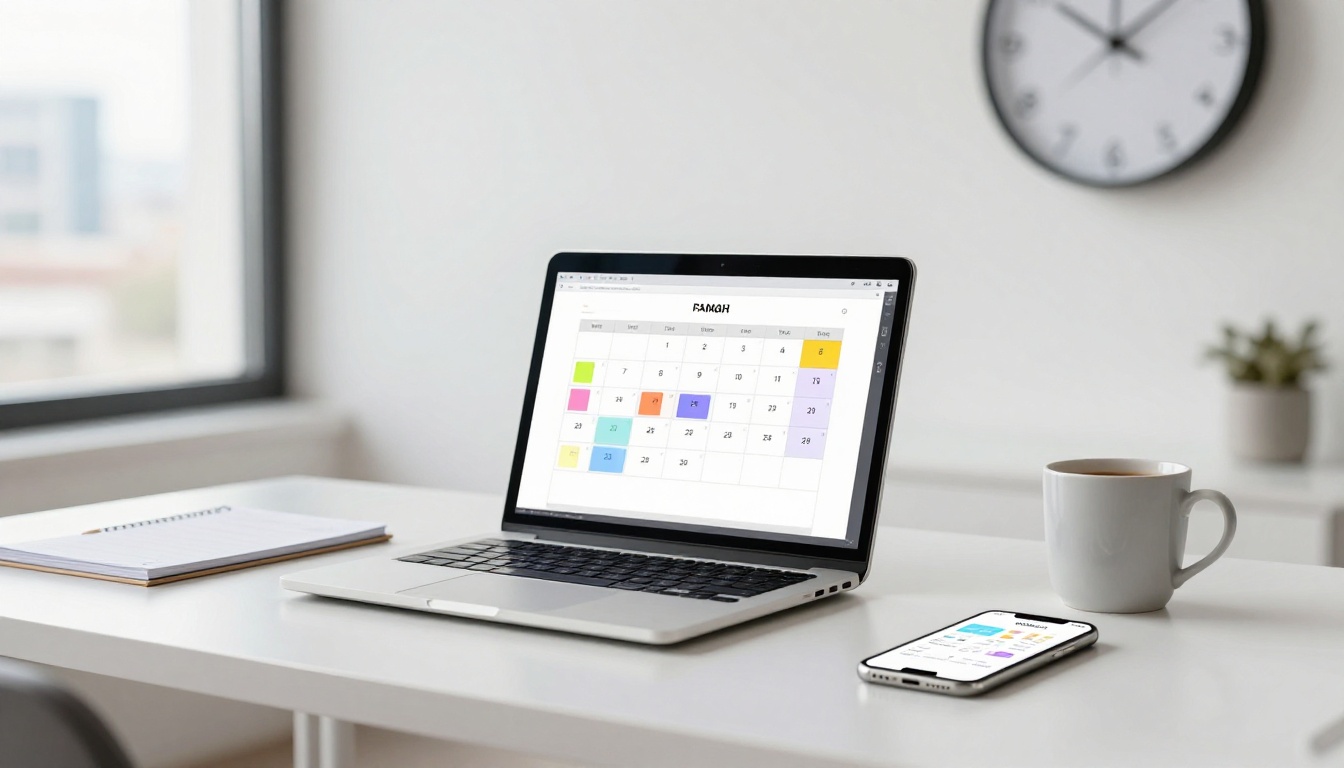
Picture Sarah. She rushes between work calls, kid pickups, and grocery runs. Her phone buzzes nonstop. She feels stressed and always late. Calendar apps change that. They pull tasks, meetings, and reminders into one spot. Chaos fades. You gain control.
In April 2026, apps like Google Calendar and AI tools such as Motion make it simple for anyone. People waste about 2.5 hours weekly on poor planning, per recent studies. This post covers picking an app, setting it up, daily habits, team sharing, and advanced tricks. Follow these steps. You will free up time for what matters.
Pick the Right Calendar App to Fit Your Busy Life
Start by matching an app to your needs. Do you want free basics? AI smarts? Or all-in-one views? Top picks in 2026 include Google Calendar for simple team sync. Motion and Morgen offer AI auto-scheduling. Pocket Informant mixes tasks and notes.

Check this quick comparison of popular options.
| App | Best For | Key Features | Platforms | Price |
|---|---|---|---|---|
| Google Calendar | Teams and beginners | Free sync, email auto-events | iOS, Android, Web | Free |
| Fantastical | Apple users | Natural language input | iOS, macOS | $6.99/month |
| Morgen | Busy pros | AI time blocks, multi-sync | All devices | From $30/month |
| Pocket Informant | All-in-one planning | Tasks, notes, calendar view | iOS, Android, Web | $4.99/month |
| Motion | Task overload | AI schedules tasks | iOS, Android, Web | From $19/month |
This table shows options at a glance. Pick one to start. Switching apps creates confusion. Trends favor AI and cross-sync. For full lists, see 6 Best Calendar Apps in 2026.
Free and Easy Starters Like Google Calendar
Google Calendar works on all devices. It’s free. Share calendars with color codes. It syncs phones and web fast.
Beginners love it. Teams use it for quick invites and reminders. Link it to Gmail. Events auto-add from emails. Pair it with Todoist for tasks. Setup takes minutes. No cost means low risk.
AI Powerhouses Such as Motion and Morgen
Motion starts at $19 a month. Morgen costs from $30. Both use AI. They turn to-dos into time blocks. Plans adjust for changes. They guard focus time.
Pros pick these for overload. They sync with Google or Outlook. Enter deadlines. The app fills gaps. For example, add “write report by Friday.” It slots two hours around meetings. Check Motion Review for 2026 features.
All-in-One Options Like Pocket Informant
Pocket Informant runs on iOS, Android, and web. It blends tasks, notes, and calendars. Full sync keeps views match. Parents or pros like the single dashboard.
Tiimo suits visual needs. It uses pictures and soft reminders. Fantastical lets you type “meeting tomorrow at 2.” These beat basic apps for depth.
Set Up Your Calendar to Block Time Like a Pro
After picking your app, add events. Set recurring ones. Use time blocking for focus work. Add buffers for surprises. Link task apps like Todoist. Pull in emails. Customize colors and views.
Make it visual. Drag and drop events. This setup cuts mental load. General steps work across apps. Examples come from popular ones.
Build Your First Time Blocks and Buffers
Time blocking assigns chunks to work. Block 9 to 11 a.m. for emails. Give two hours to projects. Add 15-minute buffers between.
Apps let you drag blocks. Set “do not disturb” on focus slots. You multitask less. More gets done. Try a Google Calendar time blocking guide for steps.
Benefits stack up. Days feel steady. Surprises fit easier.
Connect Tasks, Emails, and Other Tools
Sync Todoist or TickTick calendars. Pull Outlook meetings. Add Trello boards. You switch apps less.
TickTick sorts urgent from important. Use its Eisenhower matrix. Integrations save time. Your full plan shows in one place.
Tweak Views for a Clear Weekly Snapshot
Color code work blue, family green. Switch to week view for overviews. Add Pomodoro timers in TickTick.
Make it yours. Check plans fast. Phone glances work best.
Create Daily and Weekly Routines That Stick
Build habits now. Plan mornings. Review evenings. Do weekly checks. Limit big tasks to three to five daily. Use soft reminders. Share with family or team.
These steps build wins. You avoid burnout. Control grows over time.
Plan Each Day Without Overpacking It
Start mornings with a review. Scan blocks. Add top three tasks. Fantastical takes natural input like “call mom at noon.”
End days right. Note wins. Move undone items. Momentum stays strong. Days fill smart, not stuffed.
Run Quick Weekly Reviews to Get Better
Set Sunday for 15 minutes. Ask what worked. Tweak blocks. Use AI to reschedule if your app has it.
Spot patterns. Too many meetings? Cut them. Reviews sharpen skills fast.
Share Calendars Smoothly with Teams and Family
Sharing prevents double-books. Use color codes for roles. Send invites. Set permissions. Outlook fits secure business. Google works for casual groups.
Check availability first. Decline overlaps. Teams collab better.
Master Invites, Colors, and Availability Checks
Send invites with details. Color family blue, work red. Peek at free slots before booking.
Proactive checks avoid mess. Everyone stays aligned.
Level Up with 2026 Trends Like AI and Visual Aids
New tools shine. AI auto-plans in Motion. Visual drags in Toggl or Tiimo. Protect blocks. Go visual for routines.
These future-proof your setup. Clarity boosts output.
Let AI Handle Scheduling and Adjustments
Feed deadlines to AI. It blocks time. Shifts for pop-ups happen auto. Morgen and Motion excel here.
Mental load drops. Plans adapt real-time. You focus on work.
Add Visual Schedules and Focus Boosters
Tiimo adds pictures for neurodiverse users. TickTick offers Pomodoro and Eisenhower tools.
Drag tasks easy. Routines stick better. Engagement rises.
Calendar apps transform chaos to control. Pick one like Google if unsure. Set blocks. Build habits. Share smart. Tap AI trends.
Start today. Download an app. Block time this week. Which one do you use? Comment below. Less stress means more fun awaits.