You download a program you’ve been waiting for. It promises to make your work easier or boost your fun. Then the installer spits out an error like “not recognized” or “incompatible.” Frustration hits hard.
This snag happens to everyone on Windows or Mac. Simple issues cause it most times. Outdated software blocks progress. Permission glitches halt the process. Or antivirus software flags the file as suspicious. In April 2026, Windows 11 users face extra hurdles from buggy updates like KB5079391, which trigger error 0x80073712 and stuck installs.
Don’t worry. You can fix most cases yourself. These steps draw from the latest troubleshooting data. They cover quick wins that work on any system. Then dive into platform-specific solutions. Follow along, and you’ll get that program running without calling tech support. We’ll start with fast fixes, move to Windows details, handle Mac quirks, and end with advanced options.
Quick Fixes That Fix Most Install Failures Right Away
Most install failures stem from basic oversights. Start here before deeper dives. These steps resolve about 90% of problems in minutes.
Restart your computer first. It clears temporary glitches and refreshes system resources. Fresh starts often let installers run smoothly.
On Windows, right-click the installer file. Choose Run as administrator from the menu. This grants full permissions that standard mode lacks.
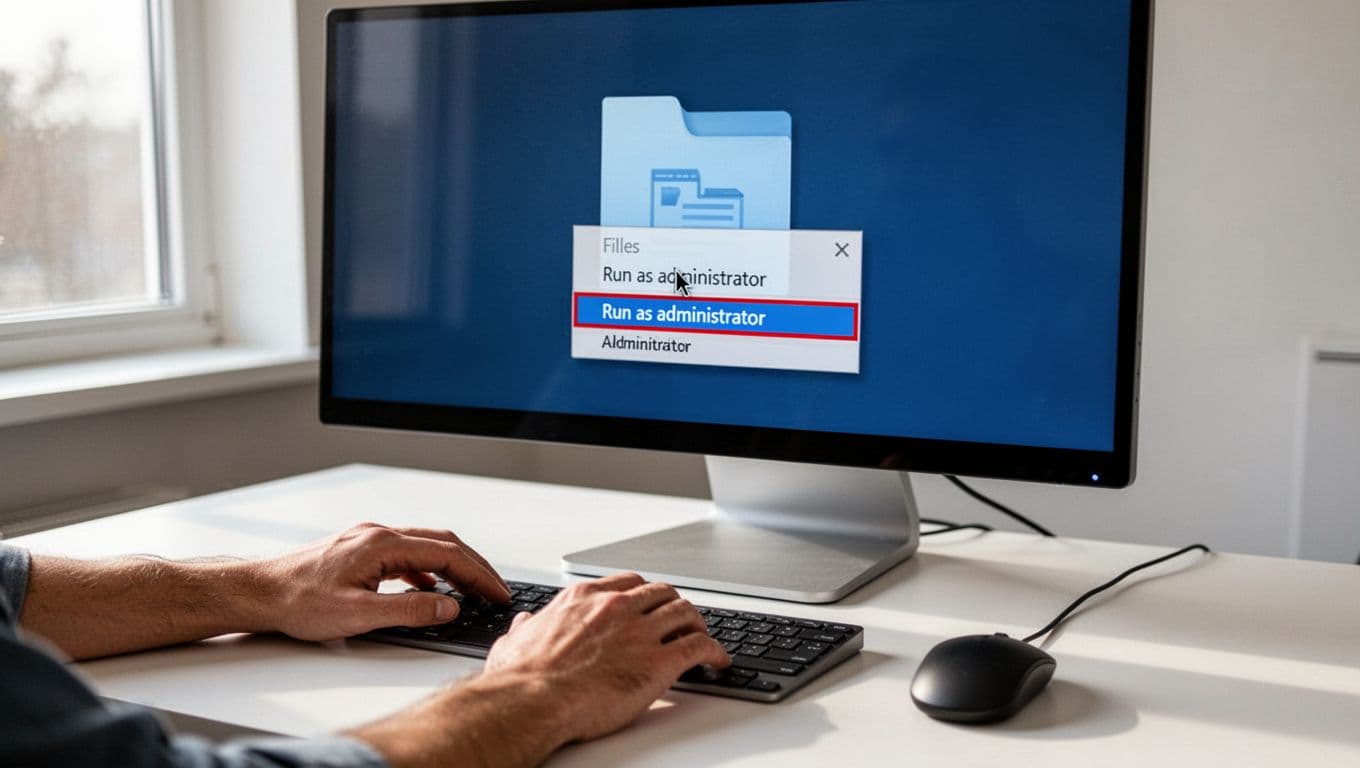
Mac users check permissions too. Right-click the app, select Open, or go to System Settings > Privacy & Security. Allow the file if prompted.
Temporarily disable antivirus. Scan the installer first to confirm it’s safe. Security tools block files they don’t trust yet.
Ensure free disk space. Aim for 5-10GB minimum. Programs need room to unpack files.
Redownload the installer. Corruption during download causes many fails. A fresh copy rules that out.
Try these in order. Most users succeed here. If not, move to your platform’s section next.
Step-by-Step Solutions for Windows Install Errors
Windows errors often tie to updates or system files. Recent 2026 patches like KB5079391 caused widespread issues. Loops and missing files plague installs. Fix them systematically.
Check your shell first. Commands fail if you’re in the wrong one. PowerShell handles irm and && properly. CMD works for basics.
Using the Correct Shell for Installer Commands
Errors like “irm not recognized” or “&& not valid” signal shell mismatch. Search PowerShell in the Start menu. Open it as administrator.
Paste your command there. For example, irm commands download scripts safely. CMD alternatives exist for simple tasks. Test with echo $env:PATH in PowerShell. It shows if paths load right.
Switch shells quickly. This fixes command recognition instantly.
Updating Windows and Clearing Caches
Outdated Windows blocks installs. Go to Settings > Windows Update. Click Check for updates. Install KB5086672 if available. It patches March 2026 bugs.
Clear update cache next. Restart while holding Shift. Enter Troubleshoot > Advanced > Startup Settings. Choose Safe Mode (option 4).
In Safe Mode, open File Explorer. Navigate to C:WindowsSoftwareDistribution. Delete all contents. Restart normally.
Run the Windows Update troubleshooter too. Or use admin Command Prompt for sfc /scannow. These repair corrupted files.
Adding Paths and Handling Drivers
PATH errors hide programs. Open PowerShell as admin. Run: $env:PATH += ';$env:USERPROFILE.localbin'; [Environment]::SetEnvironmentVariable('PATH', $env:PATH, [EnvironmentVariableTarget]::User). Restart your shell.
Verify with $env:PATH. It lists directories now.
Storage woes need drivers. During setup, press Shift+F10. Type devmgmt.msc. Load Intel VMD drivers if listed.
For OOBE blocks, use oobeBypassNRO. Restart follows. Retry the install.
These steps handle most Windows snags. Patience pays off.
Getting Programs to Install Smoothly on Mac
Mac installs fail from version mismatches or architecture issues. Apple Silicon Macs need ARM64 binaries. Older Intel chips reject them. Check basics first.
Verify macOS version. Click Apple menu > About This Mac. Ventura 13.0+ supports most apps. Update via System Settings > General > Software Update.
Checking macOS Version and Architecture Match
Mismatch causes “illegal instruction” or Abort trap. Download the right binary from the developer’s site.
For M-series, confirm ARM64. Run file /path/to/app in Terminal. It shows architecture.
Restart in Safe Mode. Hold Shift at boot. This clears extensions that block installs.
Free 20-30GB space. macOS needs it for temp files.
Homebrew and PATH Fixes for Mac
Homebrew simplifies installs. Install it with /bin/bash -c "$(curl -fsSL https://raw.githubusercontent.com/Homebrew/install/HEAD/install.sh)".
Then run brew install yourprogram. It bypasses direct downloads.
PATH issues hide brew. Check with echo $PATH. Add to ~/.zshrc: echo 'eval "$(/opt/homebrew/bin/brew shellenv)"' >> ~/.zshrc; source ~/.zshrc.
See this guide on fixing brew PATH on Apple Silicon for details.
VMs work for stubborn apps. Use UTM for Windows on Mac. Download ISO, create VM, boot manually.
These tweaks get Mac apps running fast.
Advanced Steps and When to Get Extra Help
Basics fail sometimes. Boot to Safe Mode again. Test under a new user account. Create one via System Settings > Users & Groups.
Note the exact error. Search it online. Program sites list compatibility.
Try virtual machines. UTM on Mac runs Windows 11 fine. Download fresh ISO.
Check forums or support. Avoid shady unofficial fixes. They risk security.
Prevent future issues. Keep OS updated. Scan downloads. Maintain free space.
Most problems solve at home. Stay persistent.
You’ve got tools to beat install woes now. Start with quick fixes. They handle most cases. Platform steps cover the rest. In 2026, updates like KB5086672 fix Windows bugs quick.
Try these today. Share in comments what worked or your error. Did a PATH tweak save you? Your story helps others.
Subscribe for more tech fixes. Keep your computer humming smooth.